
01Getting started
Daoban is a free place to find and watch movies, TV shows and anime. You don't need an account to browse or watch: open any title and press Play.
Everything else works without an account too:
- My List, so you can save titles for later.
- History and Continue watching, so you can pick up where you left off.
- "Because you watched…" recommendations on your home page.
- Following shows, with a note under the bell when a new episode is out.
Until you sign up you're a Guest, and all of this is saved in the browser you're using. A free account keeps it safe and syncs it across all your devices. When you sign up, everything you did as a guest moves into your account automatically.
The one thing that needs a free account is chatting with Dai, our assistant.
Install it like an app. In Chrome or Edge, use Install app in the address bar. On iPhone, use Safari's Share → Add to Home Screen. Daoban then opens in its own window without the browser bars.
02Finding your way around
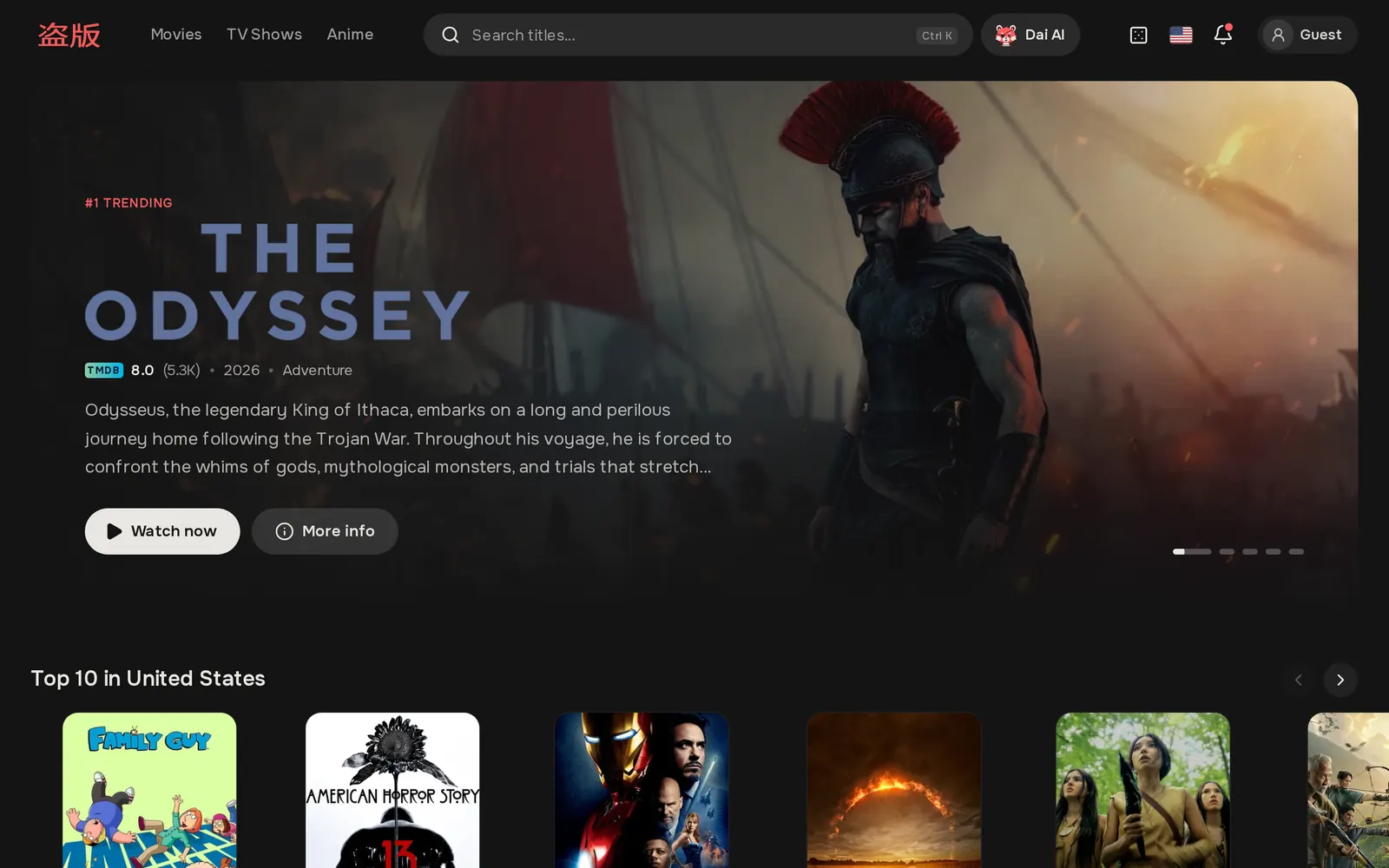
The bar at the top of every page has:
- Movies, TV Shows and Anime, each with its own feed and filters.
- Search: press / or Ctrl K (⌘ K on a Mac) from anywhere.
- Dai AI, the red panda next to search, which opens Dai, our assistant. See Dai, your assistant.
- The dice, which picks something for you to watch. See Surprise me.
- The flag, which sets your region and language. See Region and language.
- The bell for notifications, including new episodes of shows you follow. See New episodes and your calendar.
- Your profile: Guest until you sign up, then your avatar. It opens your account. See Your account.
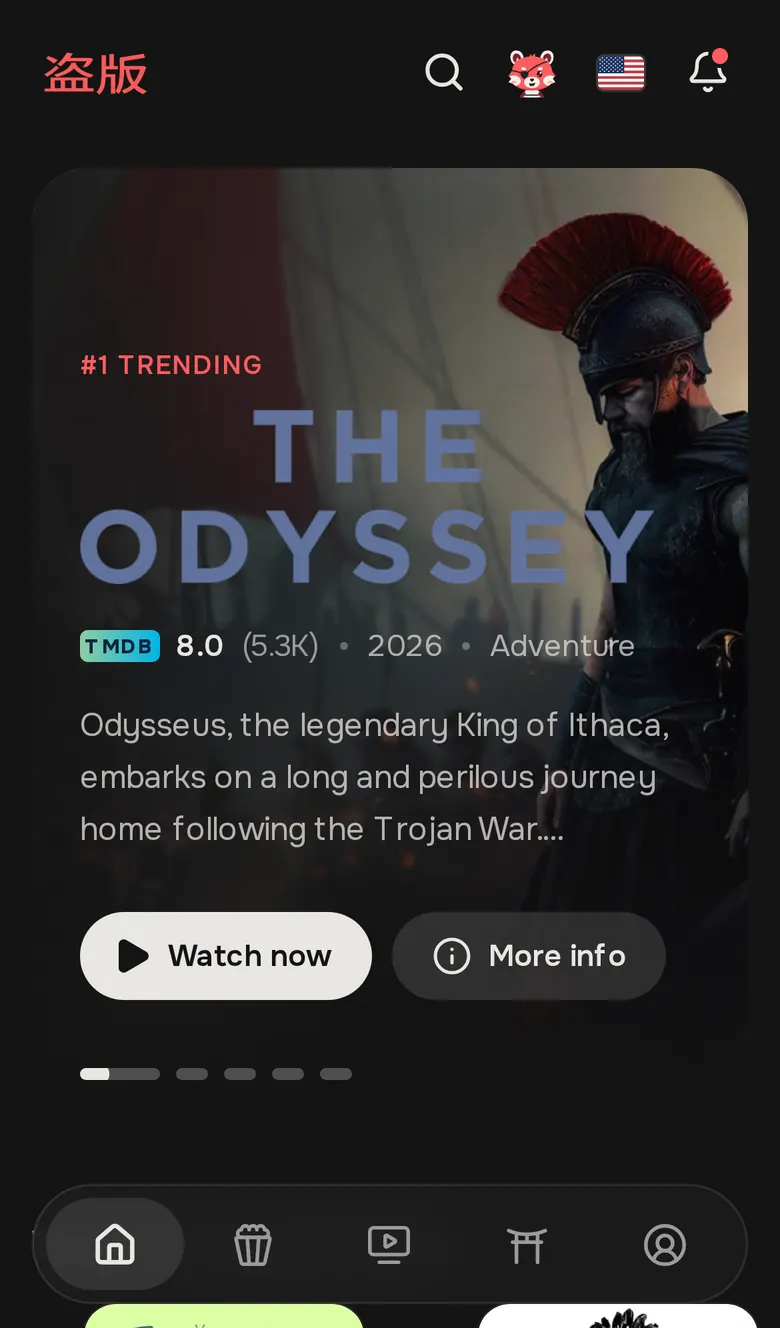
On phones and tablets the sections move to a floating bar at the bottom of the screen: Home, Movies, TV Shows, Anime and your Account. On phones the top bar keeps search, Dai (the panda), the flag and the bell, and Surprise me moves into the search menu.
03The home page
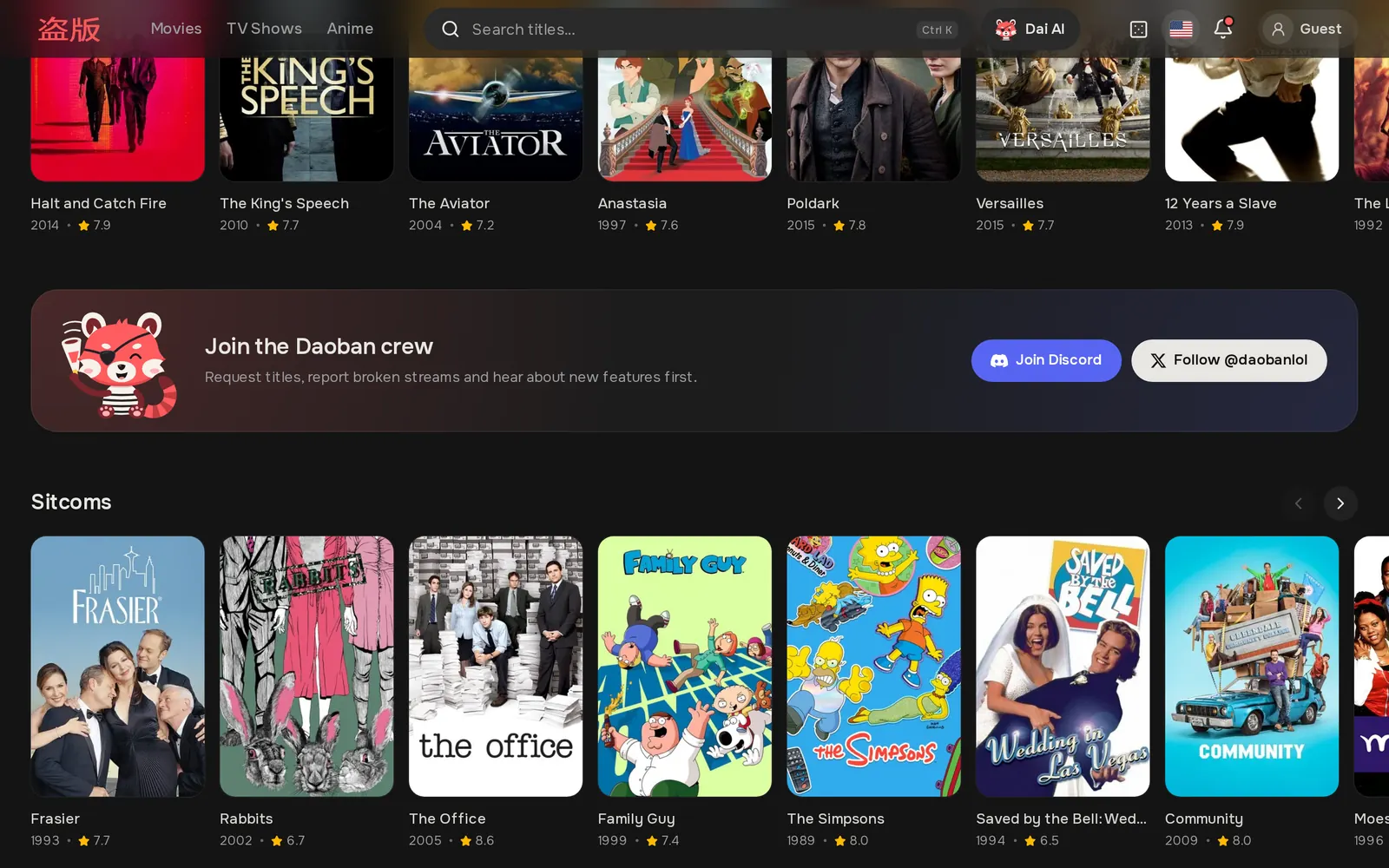
The home page is built for you and for the country you're in. Going down the page:
- The featured carousel shows five trending picks, with Watch now and More info buttons. It moves on by itself. Hovering slows it down instead of stopping it, and the dots jump straight to a slide.
- Continue watching picks up where you left off. When an episode is finished, it offers the next one.
- Top 10 in your country mixes local favourites with what's big worldwide today.
- Streaming in your country lists the services available where you are. Pick one to open its page.
- The feed is an endless list of rows that keeps loading as you scroll: trending today, new releases, titles from your country and in your languages, genres, themes like "Heists" or "Time travel", studios, decades, hidden gems and more. The order changes every day, and a title you've already seen in one row won't appear again further down.
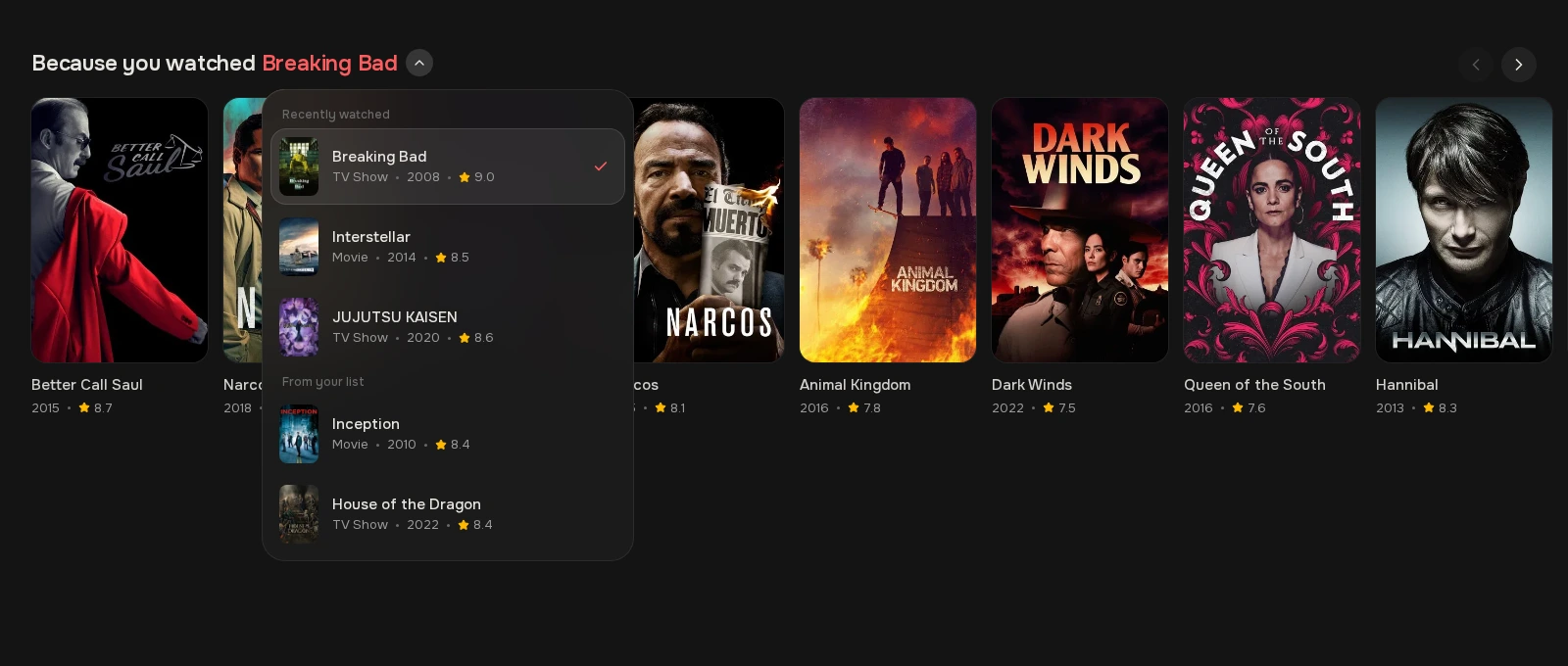
- Because you watched… appears once you have some history. It's one row, not a pile of them: press the arrow next to the title to choose which show or movie the picks are based on, from what you watched recently or saved to My List.
- Popular on Daoban appears when enough people are watching.
- When the feed runs out, a Keep exploring grid keeps going for as long as you scroll.
Don't want Continue watching or Because you watched on your home page? Turn either row off in Account → General.

04Search
Open search with / or Ctrl K (⌘ K), or click the search bar. Before you type, it shows:
- Quick actions: Streaming service (search inside one service), Surprise me and Top rated.
- Recent searches. Remove one with its ✕, or use Clear all.
- Trending now: the top five titles today.
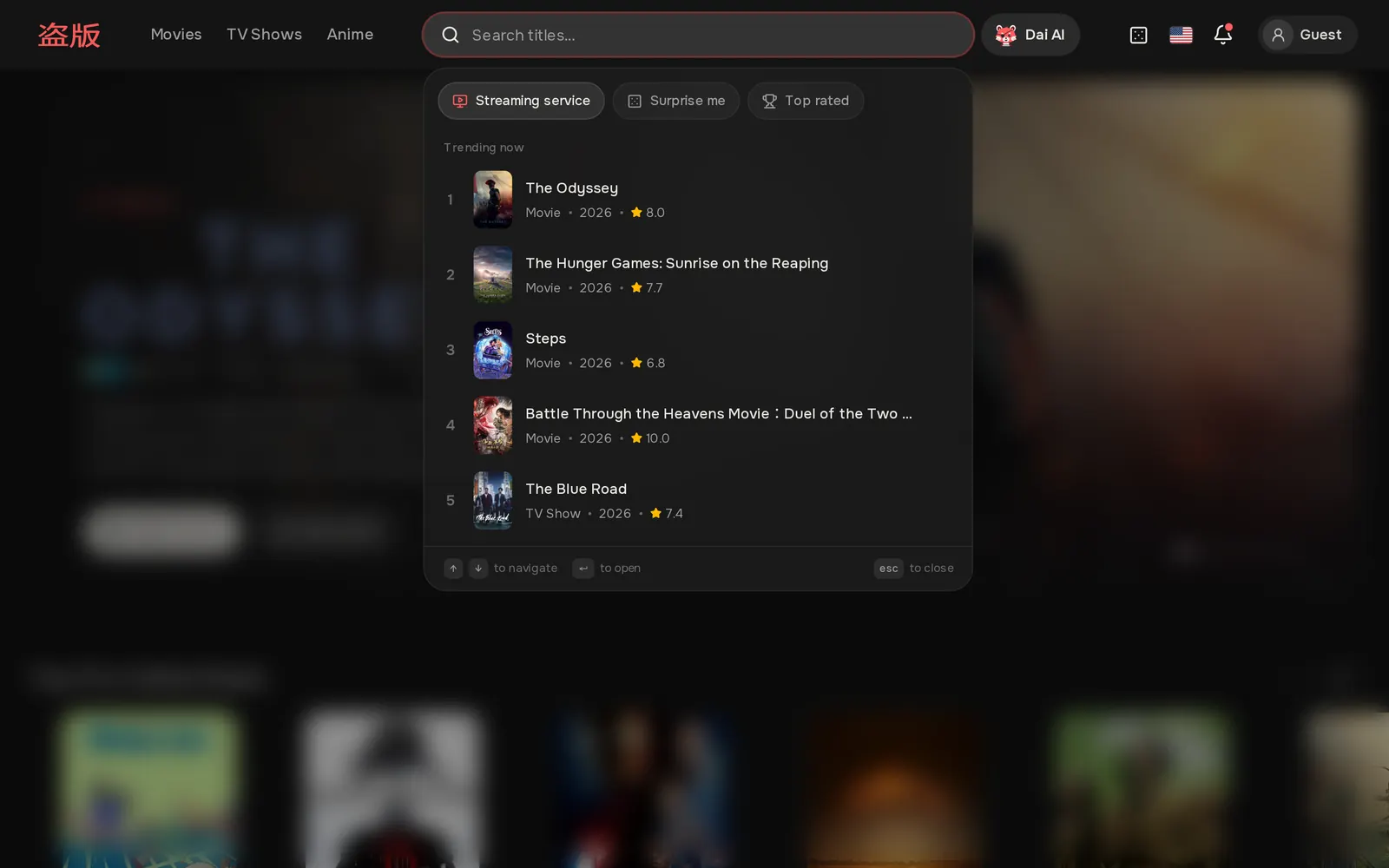
As you type, the best match appears as a large Top result card, with more results below. Use the All / Movies / TV chips to narrow things down, or pick a streaming service to search only what it offers.
| Key | In search |
|---|---|
| ↑ ↓ | Move through the results |
| Enter | Open the highlighted result |
| Backspace | In an empty box, remove the service filter |
| Esc | Close search |
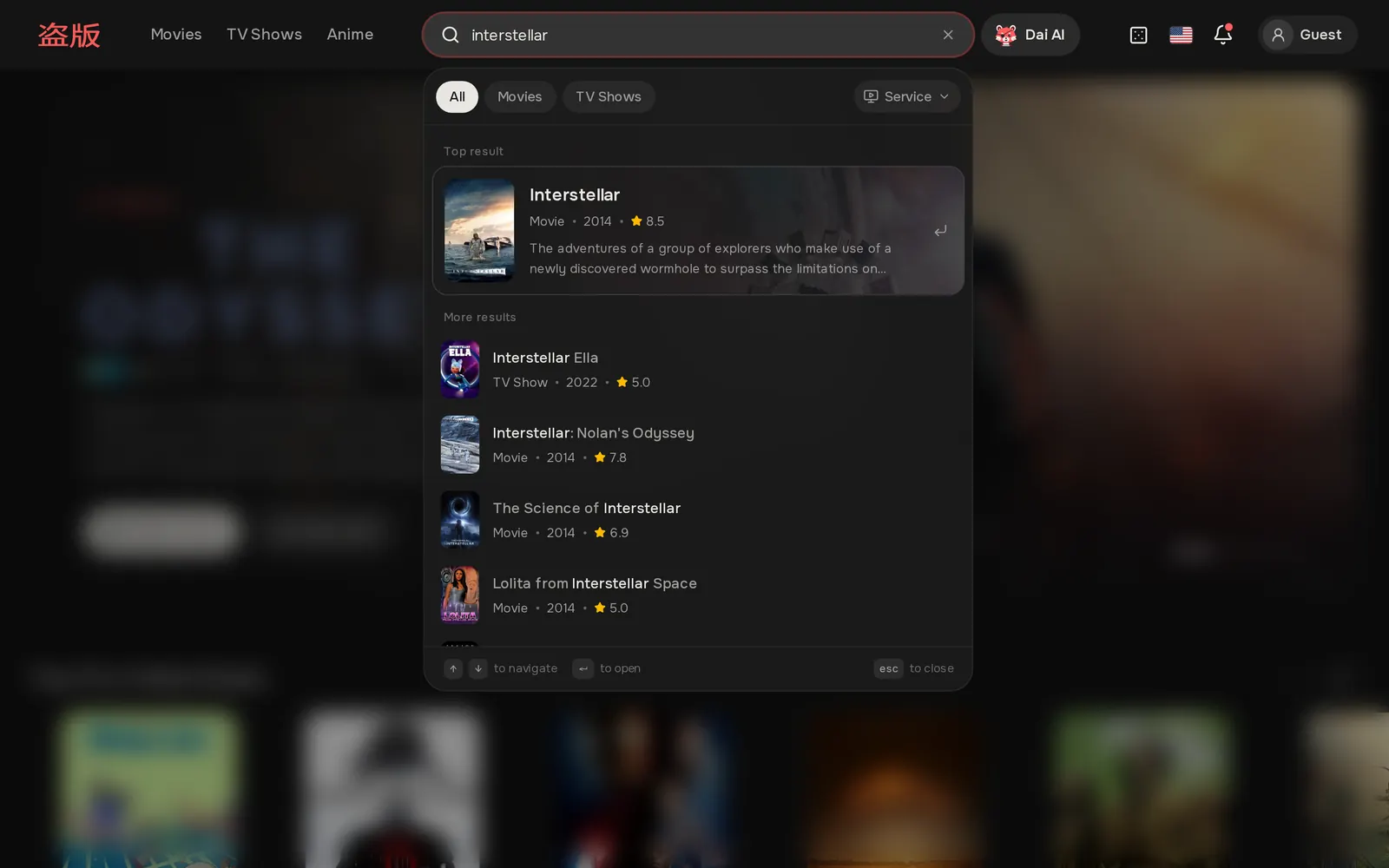
On a streaming service's page, search automatically looks only inside that service. Remove the chip to search everything again.
Typos and short names
Spelling doesn't have to be perfect. Search for demon slayr or braking bad and Daoban works out what you meant. Short names and nicknames work too, like lotr or got. When your search was corrected, you'll see Showing results for… with a link to search instead for exactly what you typed.
All results
The search box shows the best few matches. For everything, choose See all results at the bottom of the list. The results page has the same All / Movies / TV Shows chips and loads more as you scroll. Its address can be bookmarked or shared.

In Account → General you can choose whether search starts on All, Movies or TV Shows, and turn typo fixing off if you'd rather search for exactly what you type.
05Movies, TV shows and anime
The Movies, TV Shows and Anime pages each start with a featured carousel and then offer two views:
- For you: an endless feed of rows, like the home page but only for that section.
- Browse all: one big grid that loads more as you scroll.
Filters
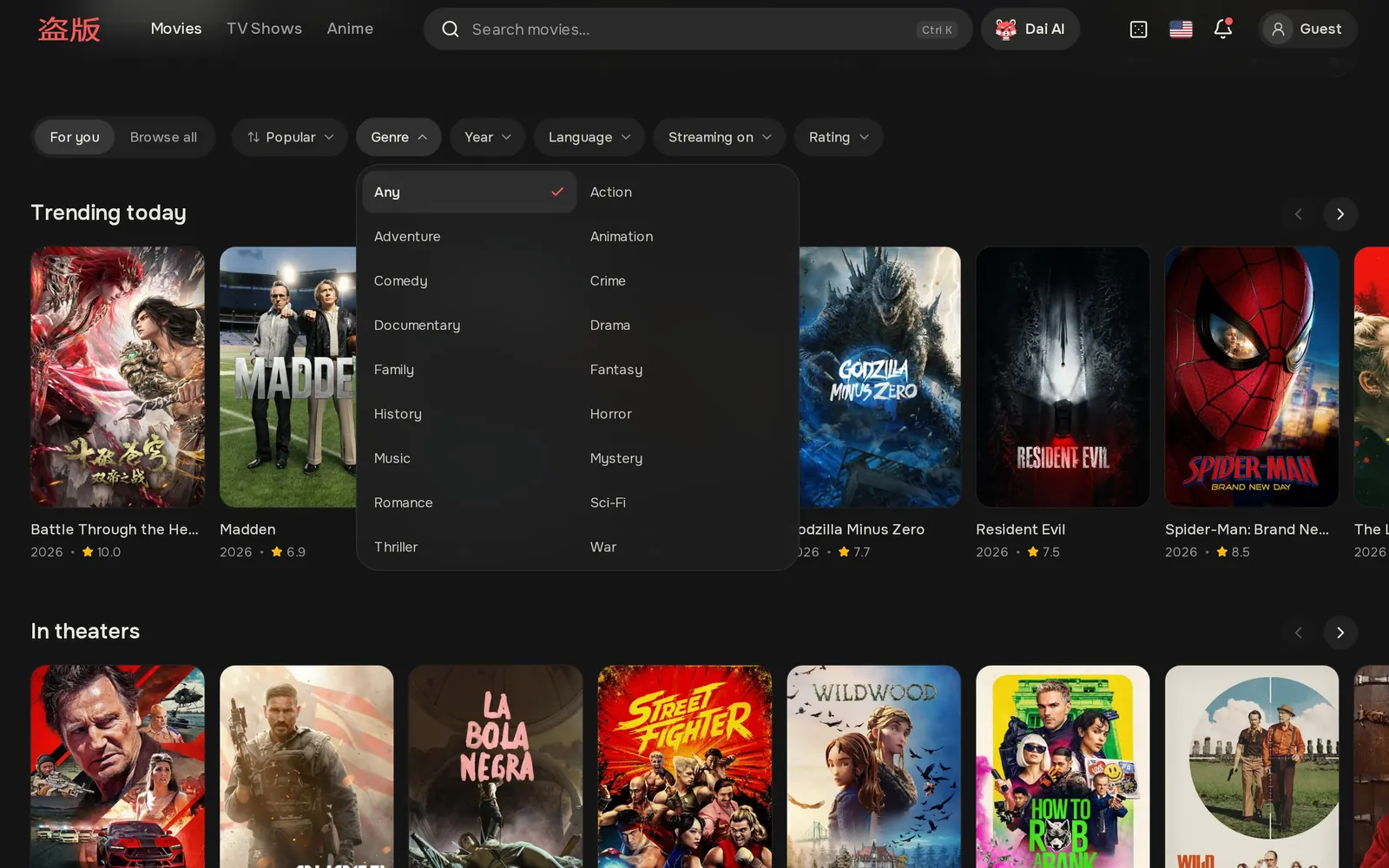
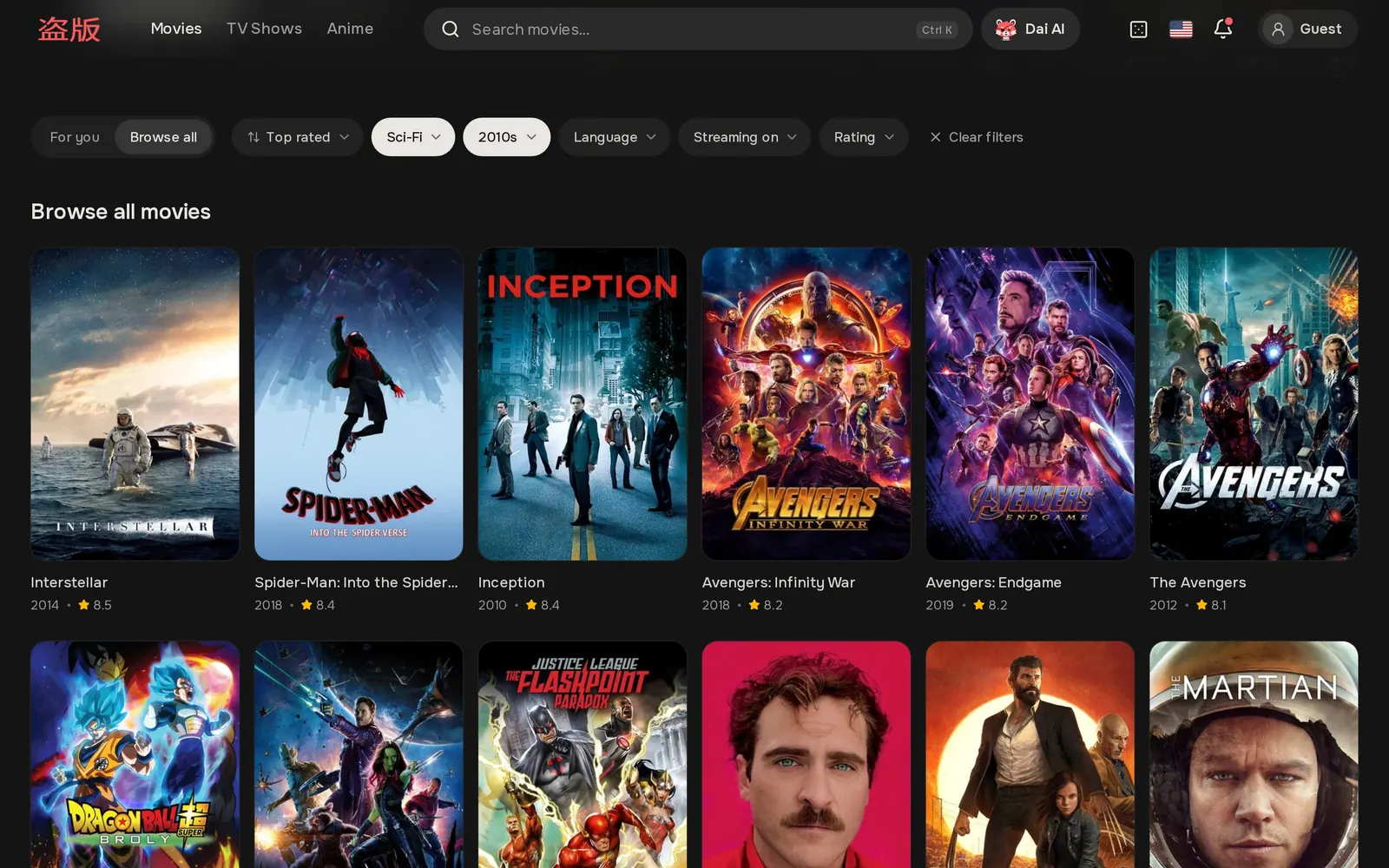
The buttons next to the switch are filters. Choosing one from For you takes you straight to the filtered grid. An active filter turns white, and Clear filters resets them all. Filters are saved in the page address, so you can bookmark or share a filtered view.
| Filter | What it does |
|---|---|
| Sort | Popular, Top rated or Newest (anime also has Trending and Favorited) |
| Genre | Any genre the section supports |
| Year | The last few years, a decade, or Before 1980 |
| Language | The original language, e.g. Korean, Hindi or Japanese |
| Streaming on | Only titles on one service in your country |
| Rating | 6+, 7+ or 8+ rated |
Anime
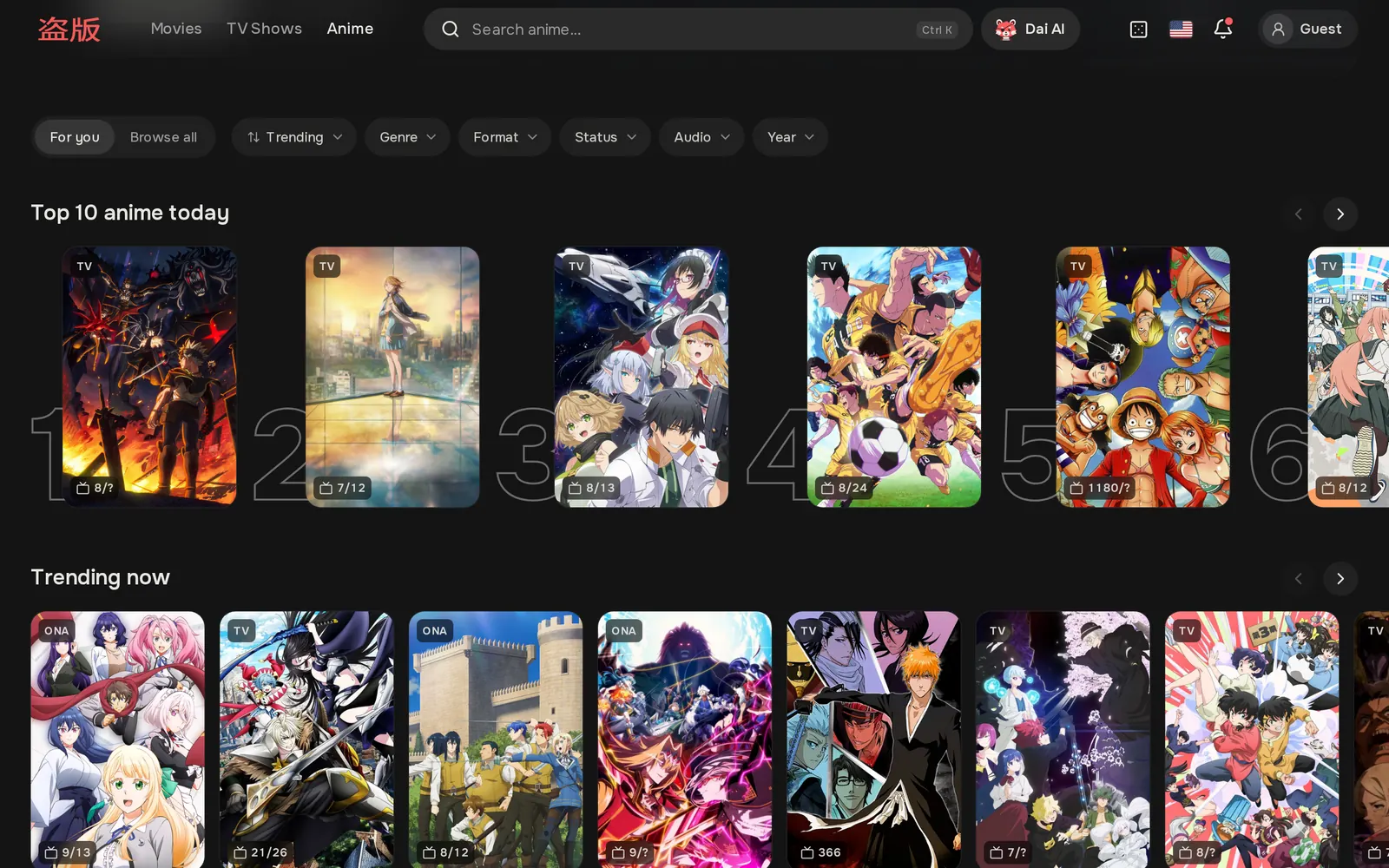
The Anime page has extra lists and filters built for anime fans:
- Lists: Top 10 anime today, Trending now, This season, Top airing, Most popular, Popular in English dub, Latest completed, Most favorited and Most anticipated.
- More rows: genres and themes like Isekai, Shounen, Mecha and Iyashikei.
- Explore anime: shortcuts to Dubbed, Airing now, Movies, OVAs, ONAs, Specials and more.
- Extra filters: Format (TV, Movie, OVA, ONA, Special, TV short), Status (Airing, Finished, Upcoming) and Audio (Dubbed only).
Anime cards show the format in the corner, plus green SUB and blue DUB badges with episode counts. Every anime opens the same title page as any other show.
06Streaming services
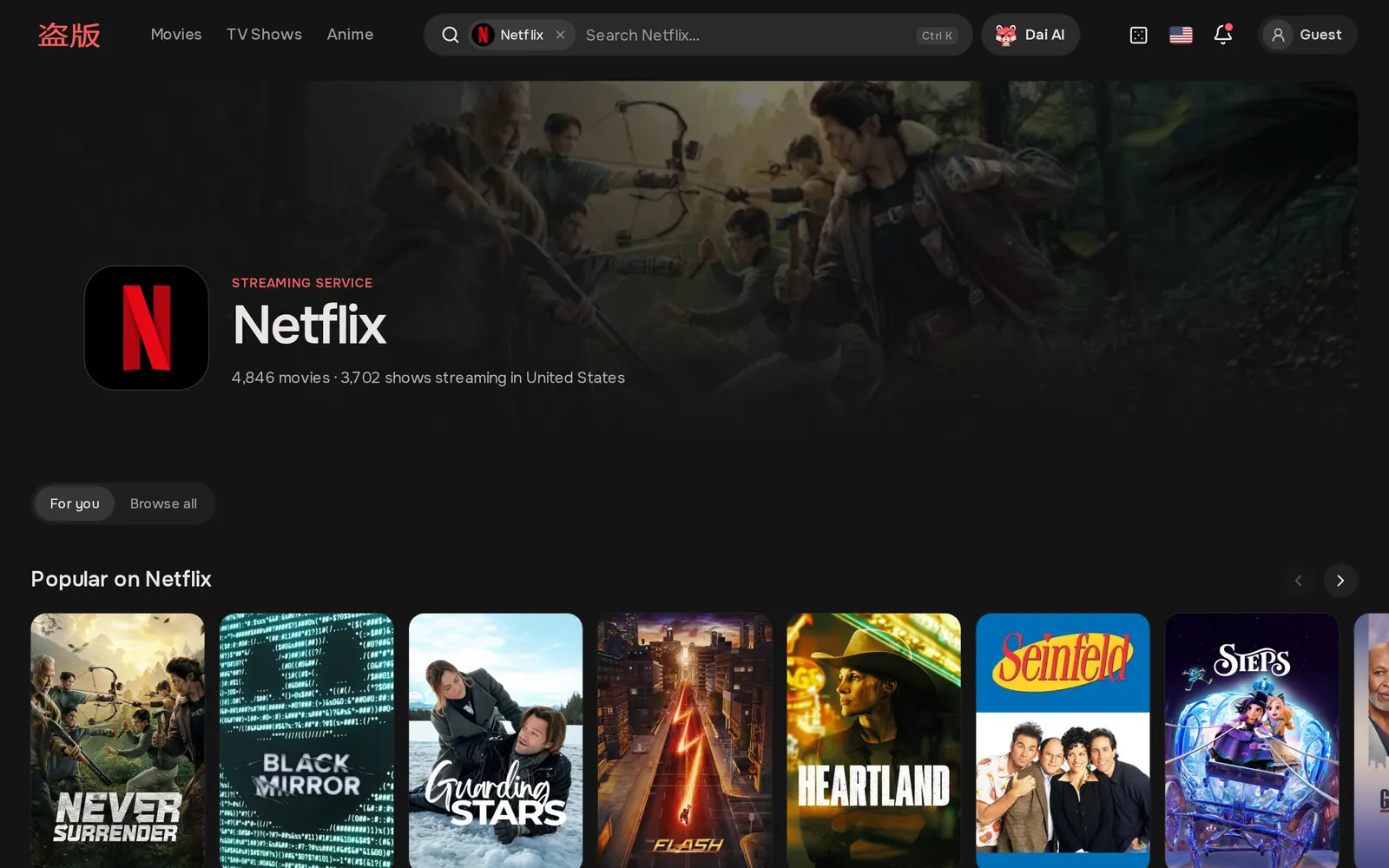
Every service in the Streaming in your country row has its own page. Netflix, Prime Video, Disney+ and the rest each show:
- How many movies and shows they have where you live.
- A For you feed made only from that service.
- A Browse all grid.
- Links to the other services.
07Surprise me
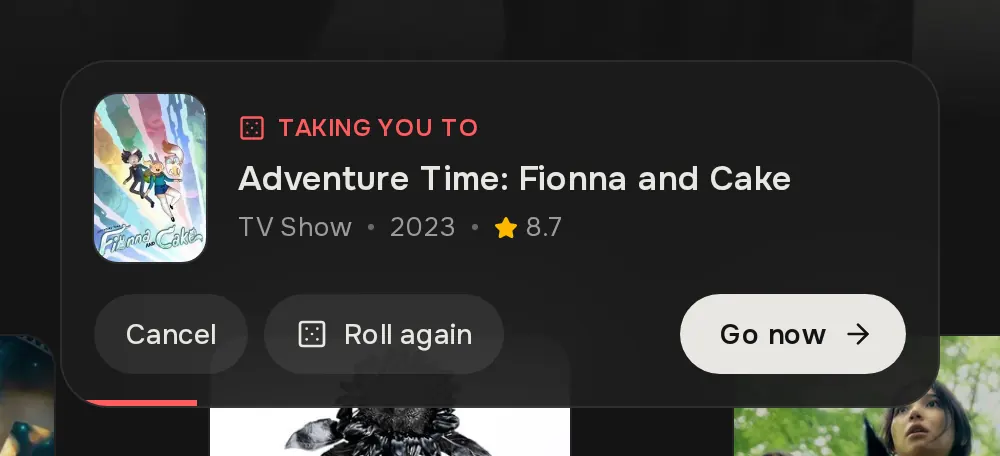
Can't decide? Press the dice in the top bar. On phones, open search and choose Surprise me.
- Daoban picks a well-rated title and counts down a few seconds before opening it.
- Hovering over the card slows the countdown, so you have time to read it. Tabbing into it with the keyboard pauses it.
- Use Roll again for another pick, Go now to skip the wait, or Cancel (or Esc) to stay where you are.
08Dai, your assistant
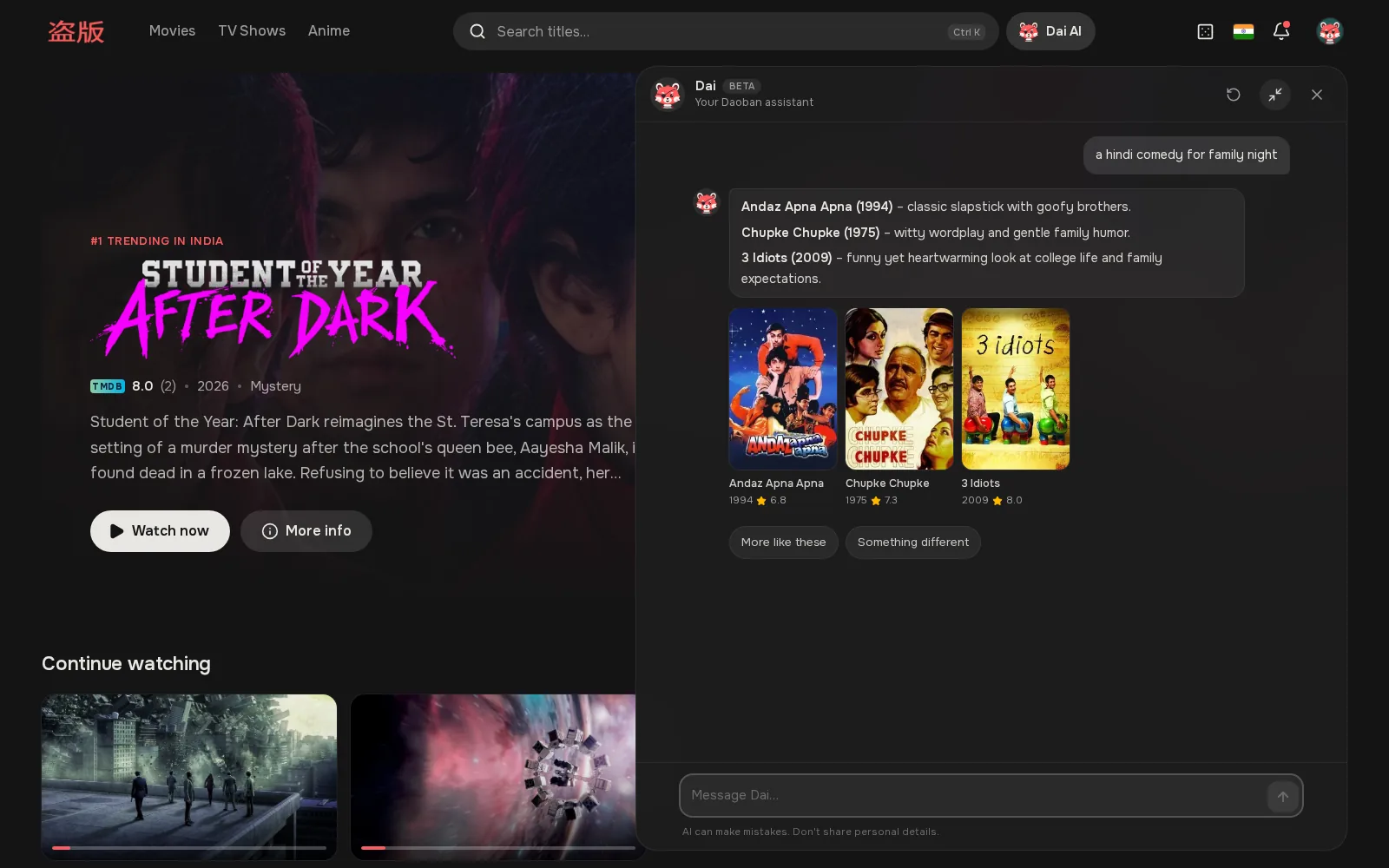
Dai is Daoban's red panda and your built-in assistant. Ask it for something to watch, or how anything on Daoban works. Open it with Dai AI next to the search bar, or the panda in the top bar on phones.
Dai needs a free account. If you ask as a guest, Dai asks you to log in first, then answers your question as soon as you do.
- Picks show up as posters under the reply. Tap one to open the title.
- Be specific for better picks: a mood, a genre, a language, a title you loved or who you're watching with. For example, "a Hindi comedy for family night" or "anime like Demon Slayer".
- If your request is very open, Dai may ask one quick question with options. Pick one and press Send, or choose Something else… to type your own answer.
- Ask about the page you're on. On a movie or show, ask "what's this about?", "is it any good?", "how many seasons?" or "when's the next episode?" and Dai answers from that title's details, without spoilers.
- Ask what's new or popular. Dai knows what's trending this week and what people are watching most on Daoban.
- It remembers your taste. Dai won't suggest things you've already watched, can remind you to finish a show you started, and can pick from your My List.
- Ask how to do something, like changing subtitles, and Dai answers from this guide. Ask for our Discord or X and you get buttons to join.
- Use the expand button for a larger window, New chat to start over, and Esc to close it. Your chat stays until you close the tab.
Dai can make mistakes, so check a title's page before you settle in. Each account can send up to 100 messages a day. You can see how many you have left under the message box and on your Account page.
Dai tailors its picks to what you've watched, saved to My List and follow. To stop that, turn off Let Dai use my watch history in Account → Privacy.
09Movie and show pages
Opening a movie or show takes you to its page.
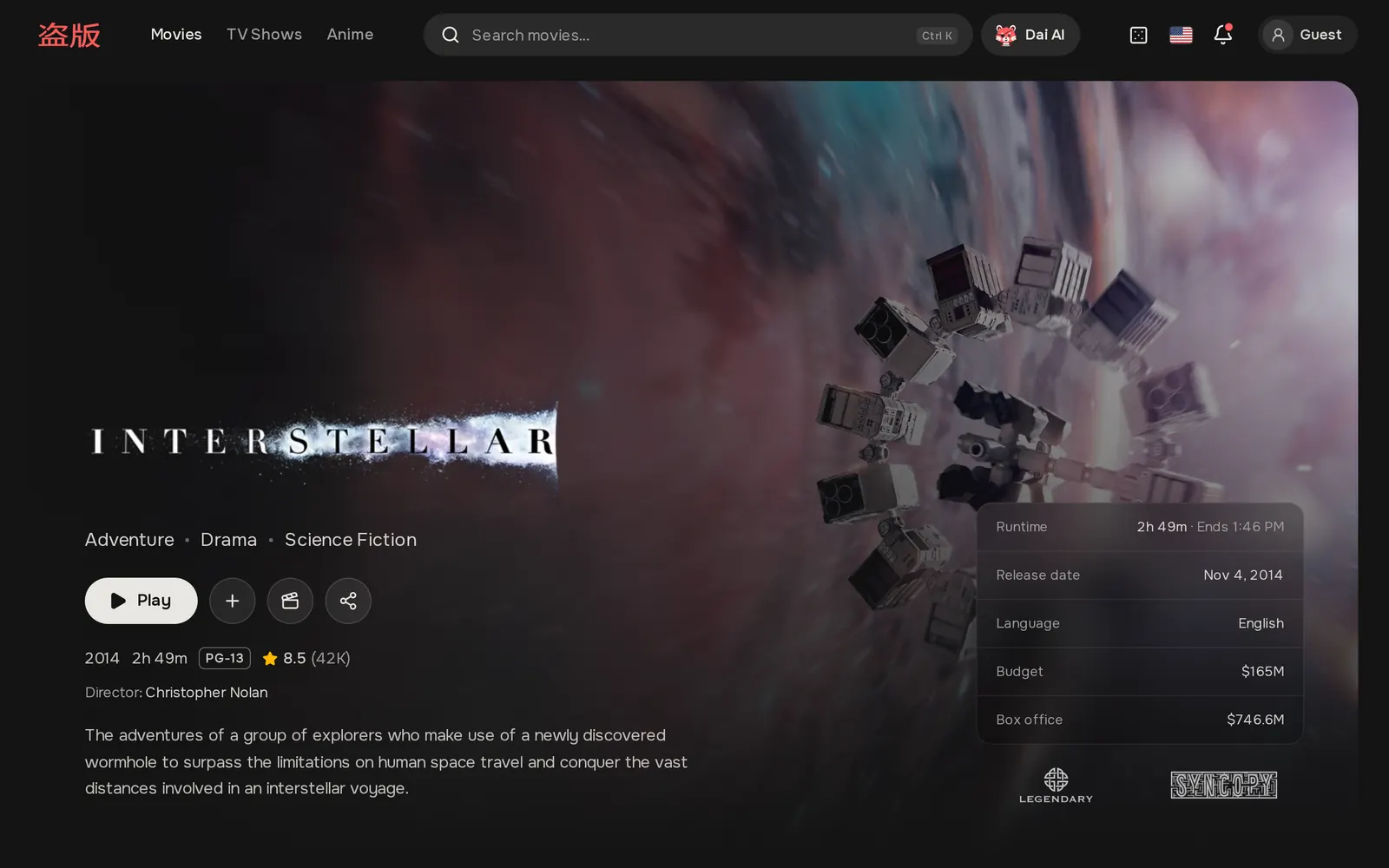
- The trailer starts quietly in the background after a moment on larger screens. Use the speaker button to unmute it, or turn background trailers off in Account → General.
- Play starts the movie, or the season picked under Episodes. If you've started watching, it becomes Resume with the time left, or Next once you've finished an episode. Pick another season and the button follows: it picks up where you were in that season, or starts it from episode 1.
- + adds the title to My List. It turns into a ✓ once it's saved.
- The bell (on shows that are still running) follows the show, so you hear about new episodes. It turns red while you're following.
- The next episode date appears in red in the info line, like "S3 E7 airs Wednesday" or "airs tomorrow", whenever a new episode has been announced.
- The film button plays the trailer full size, and Share copies the link or opens your device's share sheet.
- The facts panel lists the runtime (with what time it will end if you start now), release date, language, budget and box office. Shows list seasons, episode length and status instead.
- Titles in today's trending list get a 盗版 "#3 in Trending today" badge.
Further down you'll find:
- The cast. Pick a person to see everything they've been in.
- More like this.
- The rest of the collection, for films in a series.
- Trailers and clips.

10Episodes and episode search
Show pages have an Episodes section.
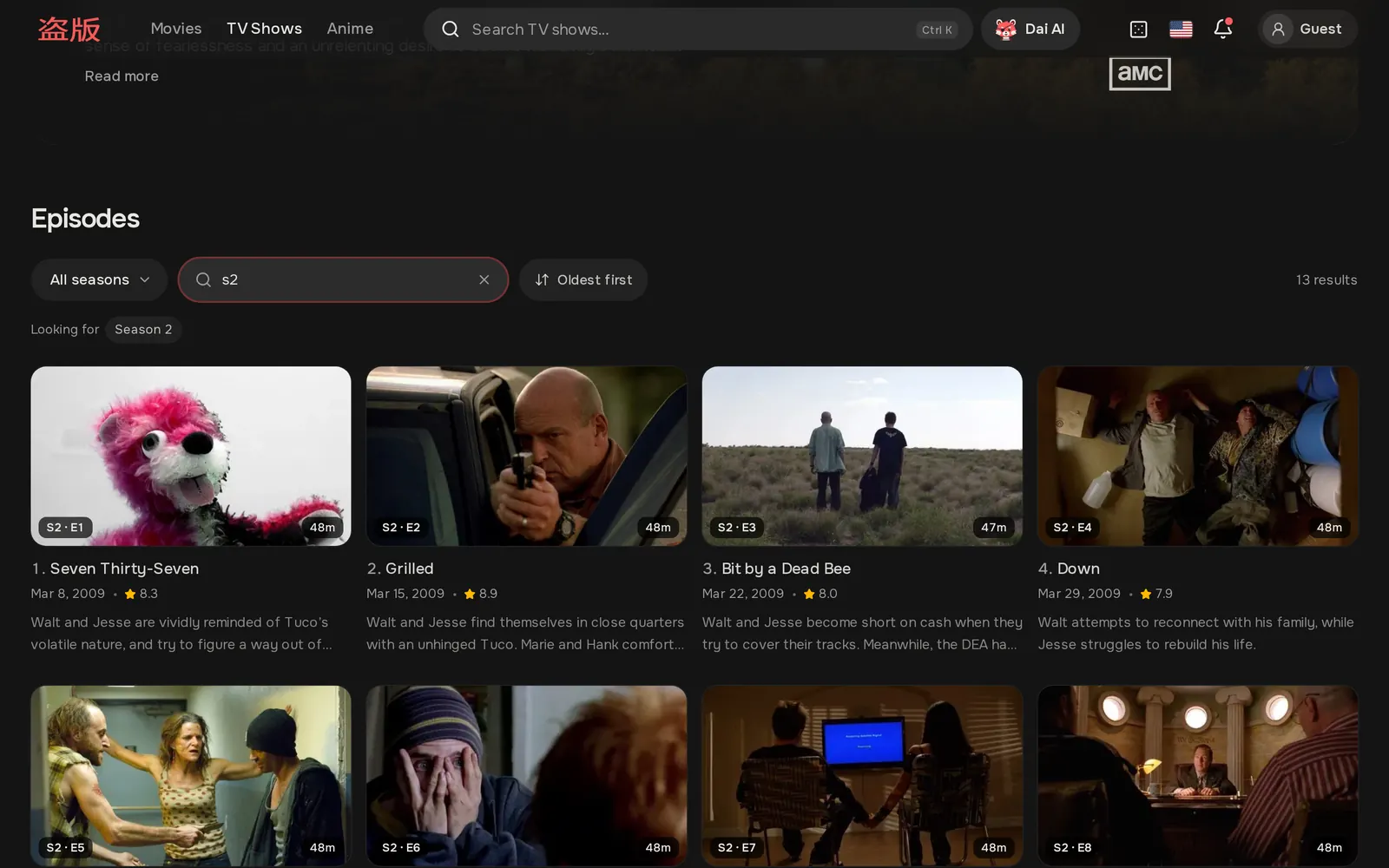
- Season picker: opens on the season you're watching, or Season 1. Switch seasons or specials here, and the Play button follows. Episodes you've finished say Watched, and half-watched ones show a progress bar.
- Oldest / Newest first: flips the order.
- Episode pages: long seasons are split into pages of 24, with range tabs (1–24, 25–48…) and page buttons at the bottom. Click the … in the page buttons and type a page number to jump straight there.
- Episodes that haven't aired yet show their air date.
Smart episode search
The search box understands more than titles. It searches across every season, and it forgives small typos.
| Type | Finds |
|---|---|
s2e5 | Season 2, episode 5 (also 2x5 or season 2 episode 5) |
s2 | All of season 2 (also second season or season two) |
e3-7 | Episodes 3 to 7 |
#12 | Episode 12 |
finale | Season finales (premiere works too) |
last season | The newest season |
first episode | The very first episode |
specials | Specials and extras |
grilled | Episodes with that word in the title or description |
11New episodes and your calendar
Daoban can keep track of the shows you're watching week to week, so you never miss a new episode.
When is the next episode?
Every show that's still running shows its next episode in the info line under the buttons, for example S5 E3 airs Thursday. It says today or tomorrow when it's that close, using your own time zone. The dates come from TMDB, which lists the day but not the time, so an episode that "airs today" may only appear later in the day.
Follow a show
- Open the show's page.
- Press the bell next to +. It turns red while you're following.
- Press it again any time to stop.
You don't need an account to follow shows. As a guest, the shows you follow are saved in this browser.
New episode alerts
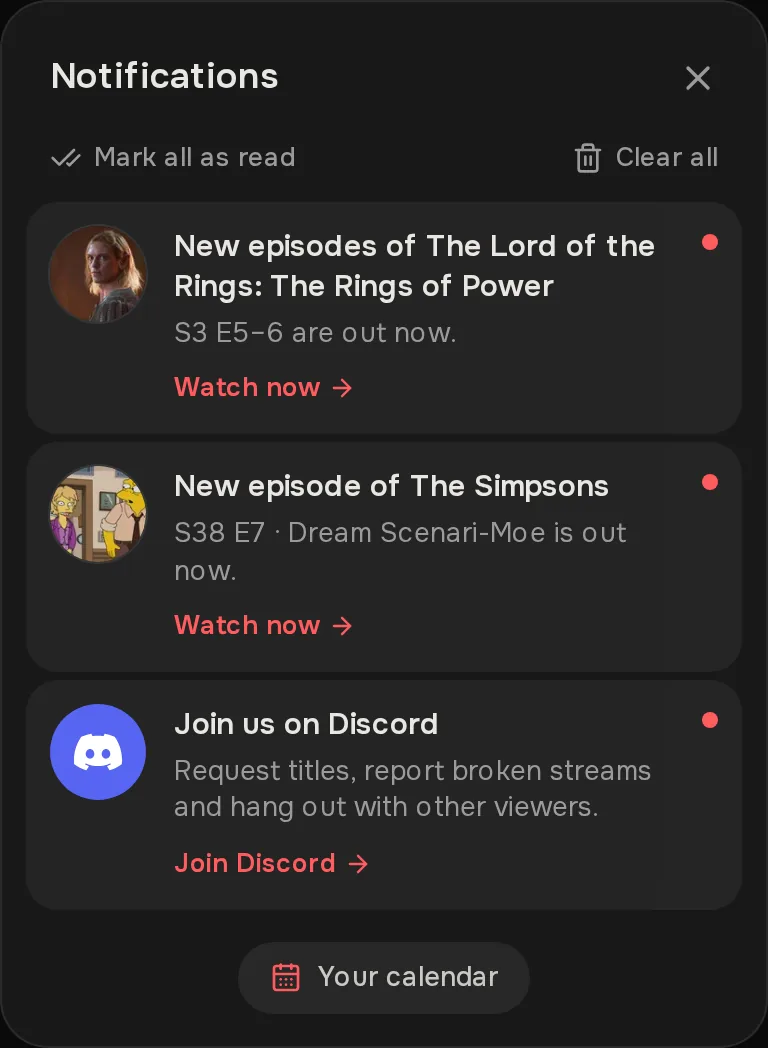
When a show you follow has a new episode, it appears under the bell in the top bar with a Watch now button. Before it says out now, Daoban checks that one of our servers can actually play it, so you won't open an episode that isn't ready yet. When several episodes come out on the same day, they're grouped into one alert, like S3 E5–6 are out now.
Your calendar
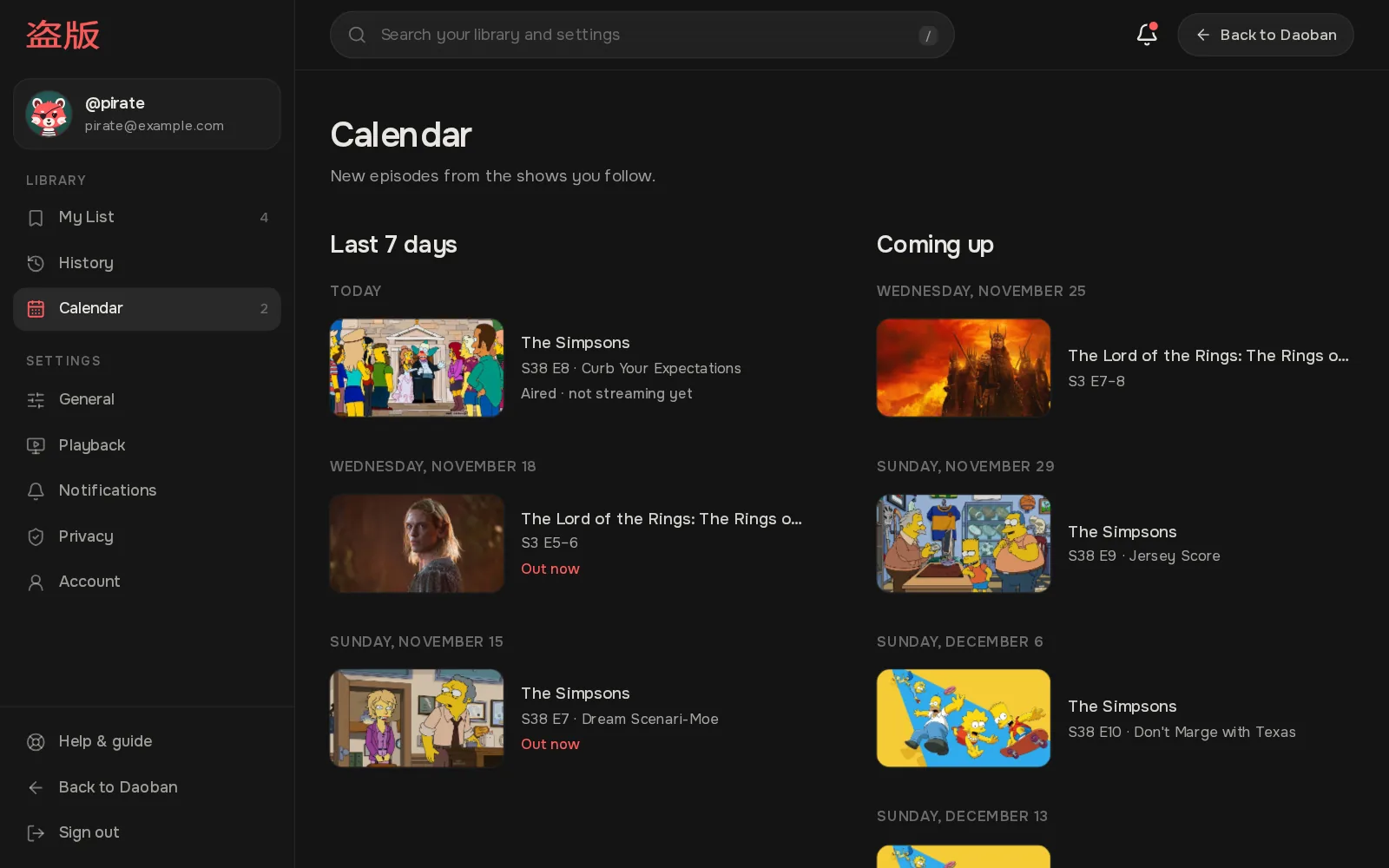
Account → Calendar shows everything about the shows you follow in one place:
- Last 7 days: episodes that came out recently. Out now means you can watch it straight away; Aired · not streaming yet means it has aired but our servers don't have it yet. Check back in a few hours.
- Coming up: announced episodes for the next six weeks, grouped by day.
- Shows you follow: each show with its next date, "No date yet" or "Ended". Press Notifying you next to a show to stop following it.
Want to follow shows without the alerts? Turn off New episodes in Account → Notifications. The calendar keeps working.
12The player
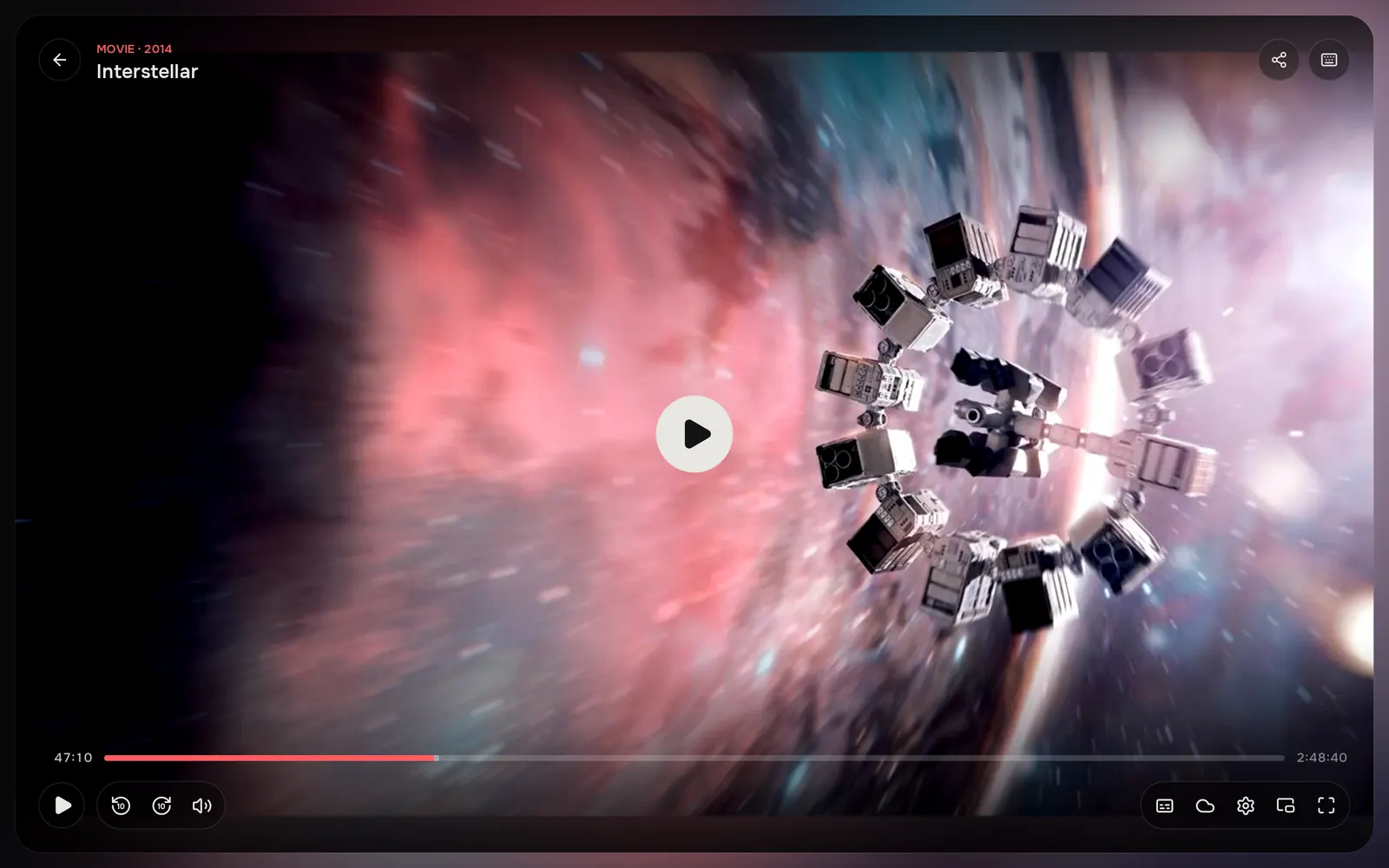
Press Play and the player asks several servers at once and starts with the best one that answers, which usually takes a second or two. Rarer titles can take a little longer while it keeps looking. If you've watched before, it picks up where you left off and briefly shows "Picked up at…".
The controls along the bottom, left to right:
- Play / pause.
- Back and forward 10 seconds.
- Volume.
- The timeline, with time watched and the total length. Hover over it (or drag it on a touch screen) to see a preview of that moment.
- Audio & subtitles, Servers (the cloud) and Settings.
- Cast to TV or AirPlay, depending on your browser. See Watching on your TV.
- Picture-in-picture.
- Full screen. On iPhone this opens Apple's own player, and your subtitles come along. To switch servers, leave full screen first.
At the top are the back button, Watch together (our advice: Discord screen share), Share at this moment (copies a link that starts at the current time) and the keyboard shortcuts list.
- Servers: if a video stutters or won't load, open the cloud menu and pick another server. Your place is kept. Servers are named after rivers from the place their audio comes from: Indian rivers like Ganga and Yamuna play Hindi, Japanese rivers play anime, the Seine plays French and the Rhine German. Rivers that cross many countries, like the Danube, have several audio languages, and the oceans are backups that can play almost anything. Servers that stream in 4K have a 4K tag, and the flag shows the language. If a server stops working mid-way, the player switches to the next one by itself and tells you, keeping the same language when it can.
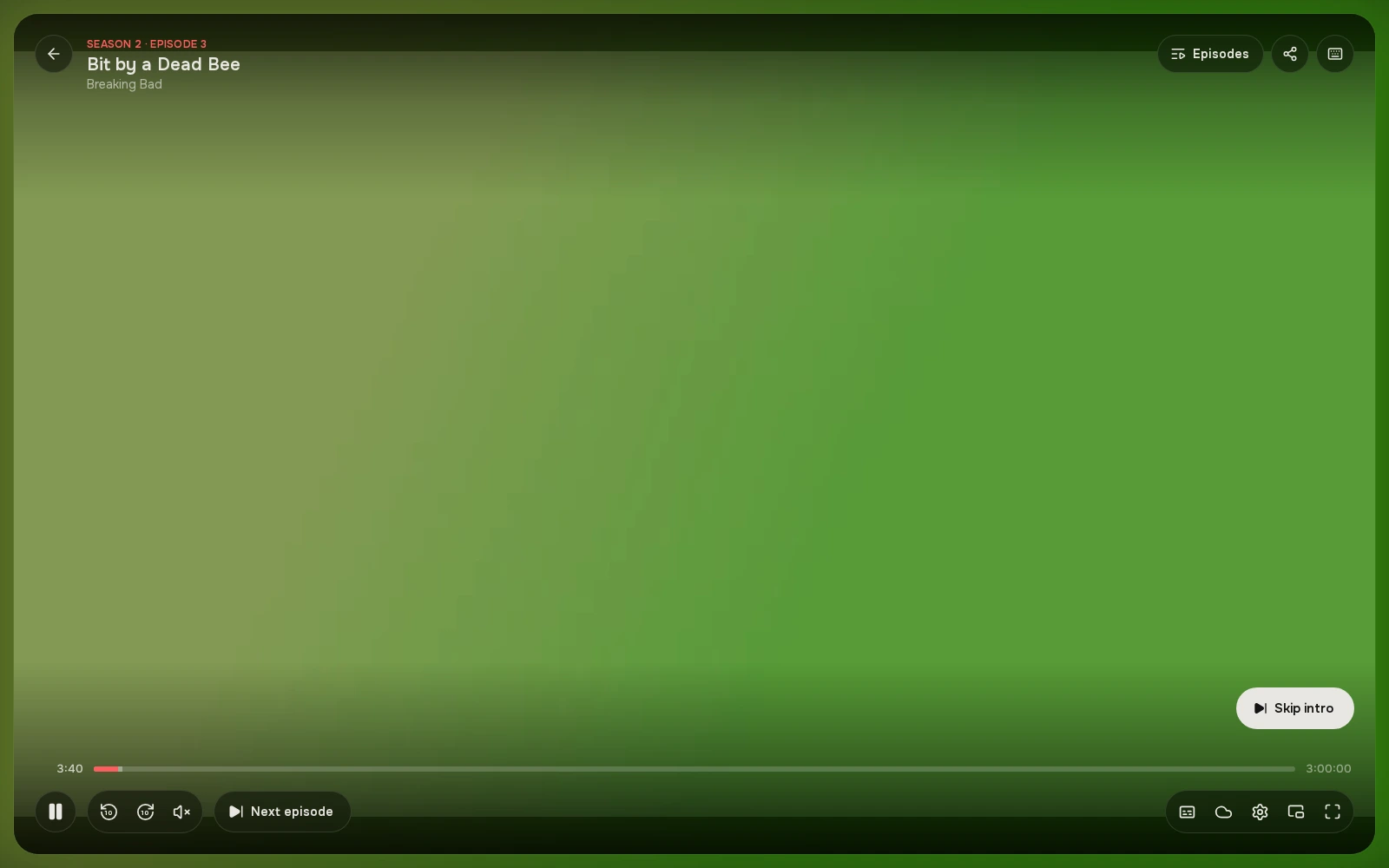
- Skip intro: on many shows and movies a Skip intro button appears during the opening, and Skip recap during "previously on". Turn on Skip intros automatically in Settings to jump past them without pressing anything. During the end credits of an episode, the next one is offered straight away.
- Up next: near the end of an episode a card offers the next one, and it plays automatically unless you turn that off.
- Episodes panel: during a show, press E to browse and search episodes without leaving the player.
- More to watch: when a movie ends you get suggestions for what to watch next.
13Audio language and dubs
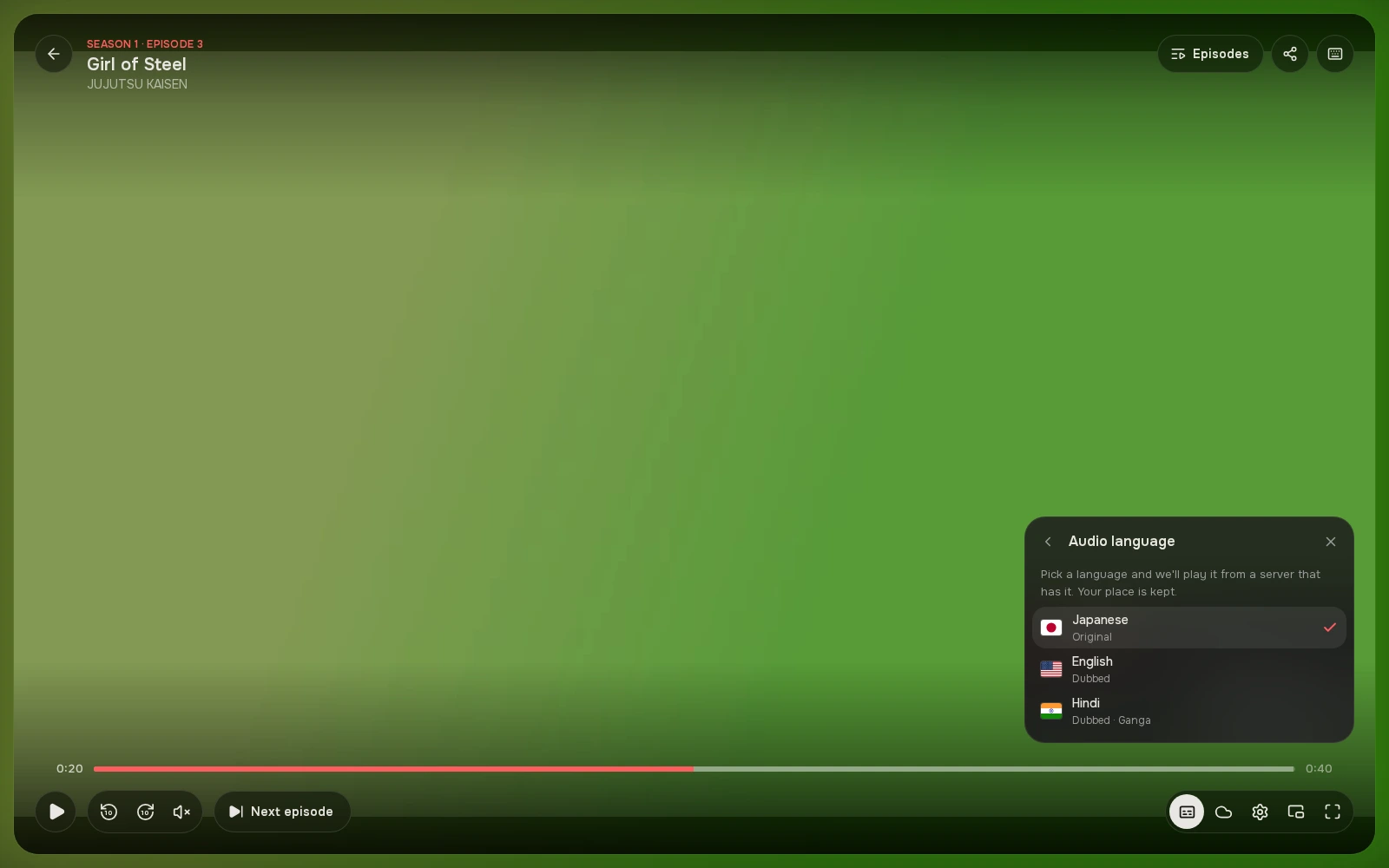
Many titles come in more than one language: anime in Japanese and an English dub, Indian films in Hindi, Tamil and Telugu, films dubbed into French, German or Polish, and more. You choose the language; Daoban finds a server that has it.
- Open Audio & subtitles (the CC button at the bottom right). The top row shows the language you're hearing, with a number when others are available.
- Tap Audio language to see every language found for this title. Each one says whether it's the Original or Dubbed, and which server it comes from.
- Pick one. If it's on the same stream it switches instantly; otherwise the player moves to that server and carries on from the same moment.
When you open the menu, Daoban quietly checks the other servers for more languages, so the list can grow for a second or two ("Looking for more languages…"). If a language isn't in the list once that's done, none of our servers have it for that title yet.
Looking for a dub from the Servers menu? Use Want another language? at the top of it to jump straight to the language list.
Always want the same language, like Hindi or an English dub? Set Preferred audio in Account → Playback. Videos then start on a server in that language whenever one has it, and fall back to the original when none does.
14Subtitles
Subtitles live in the same Audio & subtitles menu. Turn them on, pick a language or search the list of languages. C turns them on and off, and Daoban remembers your language for next time.
Each server brings its own subtitles, picked to match its own video, so they line up properly. That means the list can change when you switch servers. Most titles have dozens of languages.
- Upload a subtitle file (
.srtor.vtt) to use your own subtitles. - Style:
- font (Onest, System, Serif or Mono) and bold;
- size (Small, Medium, Large);
- colour (White, Yellow, Coral);
- background (Dark box or Shadow only).
- Timing: if the subtitles are early or late, nudge them earlier or later until they match, then reset when you're done.

15Player settings
The audio language isn't here: it's in the Audio & subtitles menu.
| Setting | What it does |
|---|---|
| Quality | Auto, or a fixed quality when the server offers several |
| Speed | 0.5× to 2×, or Custom for any speed from 0.25× to 2×, like 1.15× |
| Sleep timer | Pause after 15 min, 30 min or 1 h, at the end of the movie or episode, or after a custom time |
| Ambient light | The picture's colours glow softly around the player |
| Zoom to fill | Crops the black bars on wide screens |
| Skip intros automatically | Jumps past intros and recaps on shows, without pressing Skip |
| Autoplay next episode | Plays the next episode when one ends |
| Loop | Starts the video again when it ends |
| Volume boost | Up to 200% for quiet audio |
| Screenshot | Saves the current frame as an image |
| Stats | Server, resolution, bitrate, connection speed, buffer and dropped frames |
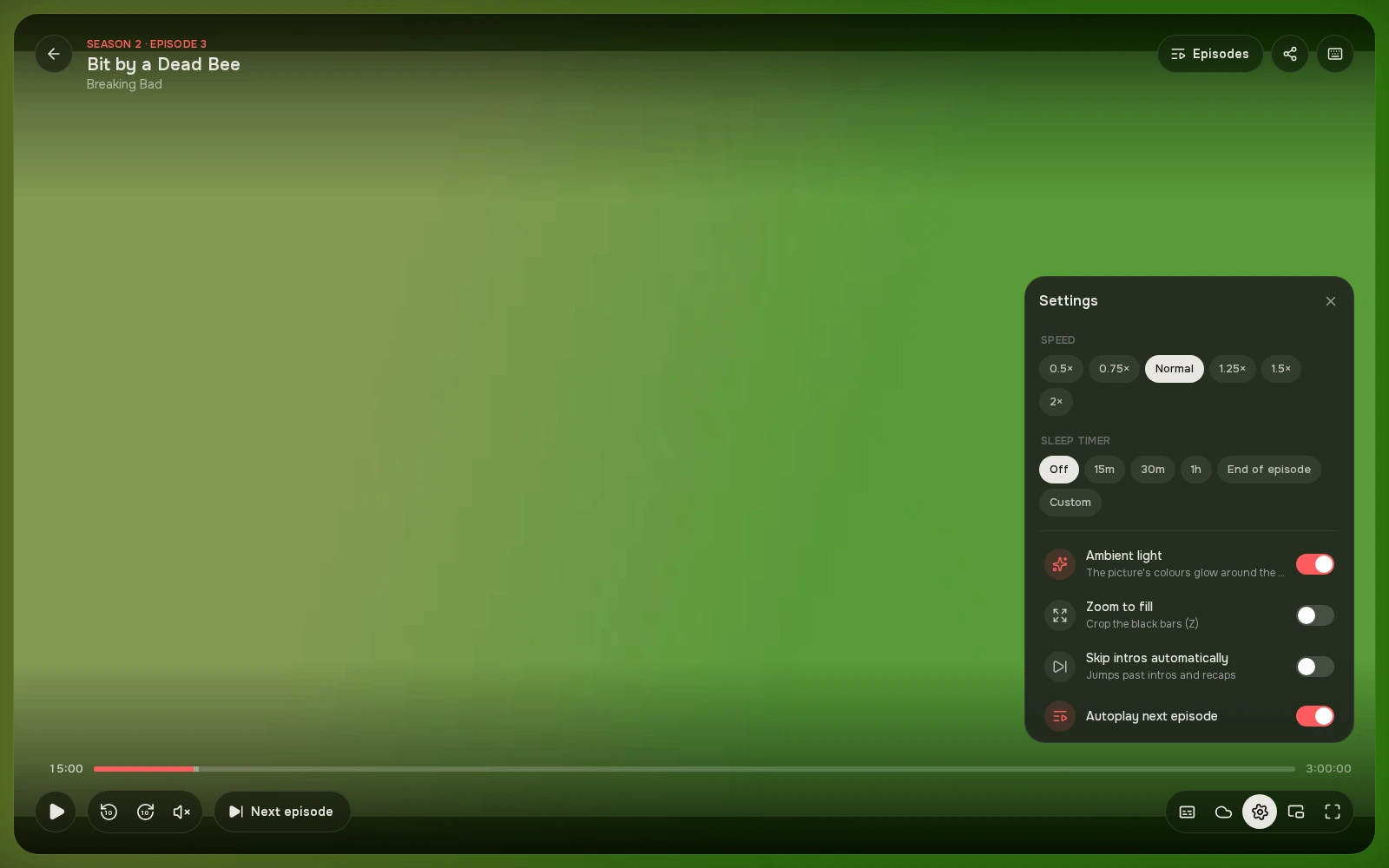
Changes made here only last while you watch. To set what every video starts with, like the speed, autoplay, skipping intros, ambient light and your subtitle style, use Account → Playback.
16Watching on your TV
You can send what you're watching to a TV and use your phone or computer as the remote. The button you get depends on your browser:
- Cast to TV in Chrome, Edge and other Chrome-based browsers on a computer or Android phone. It works with Chromecast, Google TV and TVs with Chromecast built in.
- AirPlay in Safari on iPhone, iPad and Mac. It works with Apple TV and TVs that support AirPlay.
- Turn the TV on and make sure it's on the same Wi-Fi as you.
- Start the video, then press the Cast or AirPlay button at the bottom of the player.
- Pick your TV. The video carries on there from the same moment.
With Cast, the subtitles you have on go to the TV too, and the player turns into a remote that says Playing on and your TV's name: play and pause, back and forward 10 seconds, and the timeline. Space, ← → and J L work as usual. Your progress keeps saving while the TV plays. Press Stop casting and the video picks up in your browser where the TV left off.
With AirPlay, Apple's list of devices opens. Pick your TV and keep using the player's controls. Subtitles don't show on the TV with AirPlay yet.
If the player says Your TV couldn't play this server, press Stop casting, pick another server from the cloud menu and cast again. Firefox can't cast, so use Chrome, Edge or Safari for this.
17Keyboard shortcuts and gestures
Anywhere on the site
| Key | Action |
|---|---|
| / or Ctrl K / ⌘ K | Open search |
| Esc | Close search, menus and pop-ups |
In your account
| Key | Action |
|---|---|
| / or Ctrl K / ⌘ K | Search your library and settings |
| ↑ ↓ then Enter | Pick a result, or a choice in any dropdown |
In the player
| Key | Action |
|---|---|
| Space or K | Play or pause |
| ← → | Back / forward 5 seconds |
| J L | Back / forward 10 seconds |
| ↑ ↓ | Volume up / down |
| 0 – 9 | Jump to 0%–90% of the video |
| M | Mute |
| C | Subtitles on / off |
| F | Full screen |
| Z | Zoom to fill |
| A | Ambient light |
| S | Screenshot |
| E | Episodes panel (shows only) |
| Shift + N | Next episode (shows only) |
| ? | Show the shortcuts list |
| Esc | Close panels |
Mouse and touch
| Gesture | Action |
|---|---|
| Scroll over the picture | Volume |
| Press and hold | 2× speed while held |
| Click / tap the picture | Play or pause (on touch screens the first tap shows the controls) |
| Double-tap the left or right side | Back / forward 10 seconds (touch screens) |

18Your account
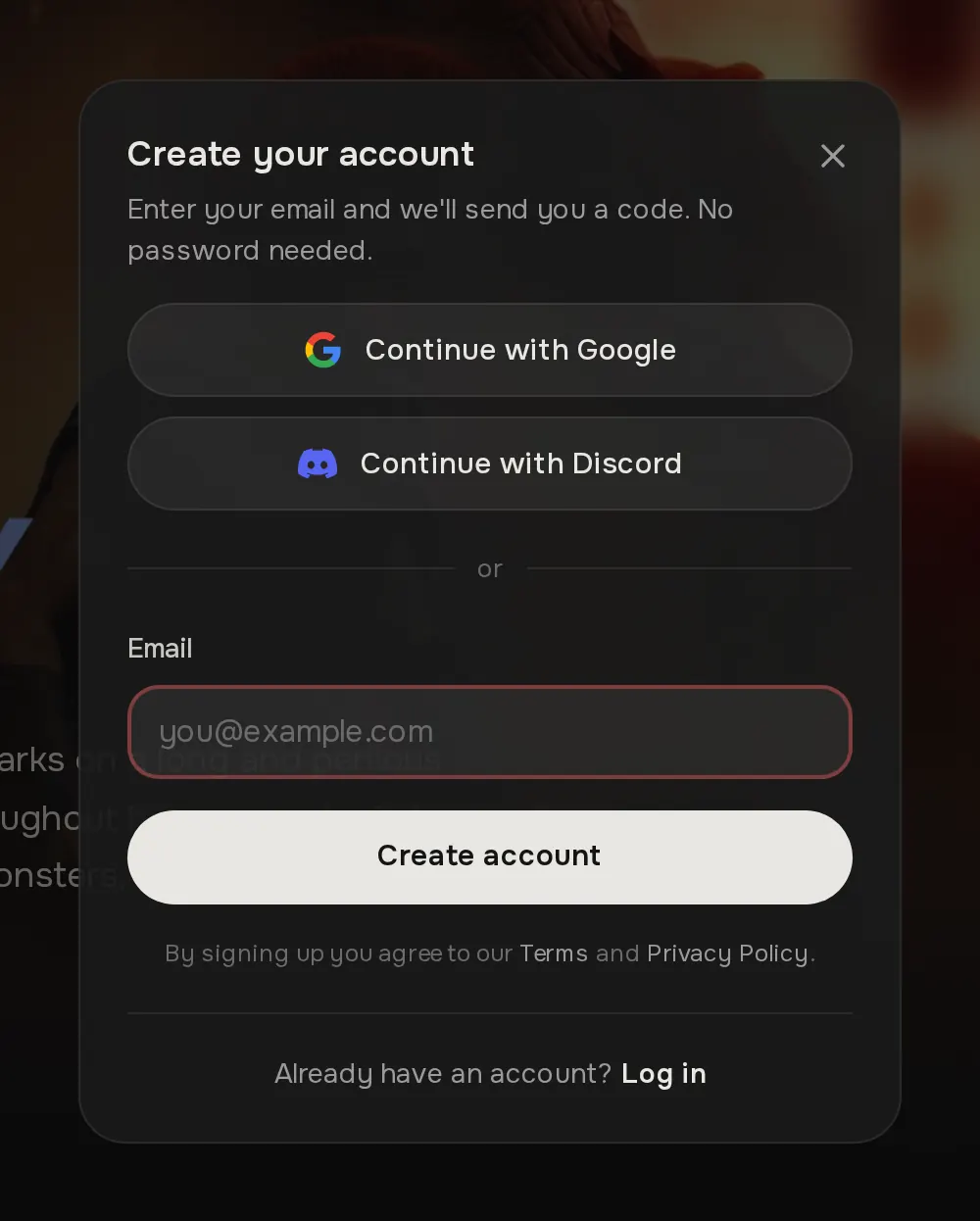
Press Sign up and enter your email. You'll get a one-time code; there are no passwords to remember. You can also continue with Google or Discord. After that, pick a username and you're done. Anything you saved as a guest comes with you.
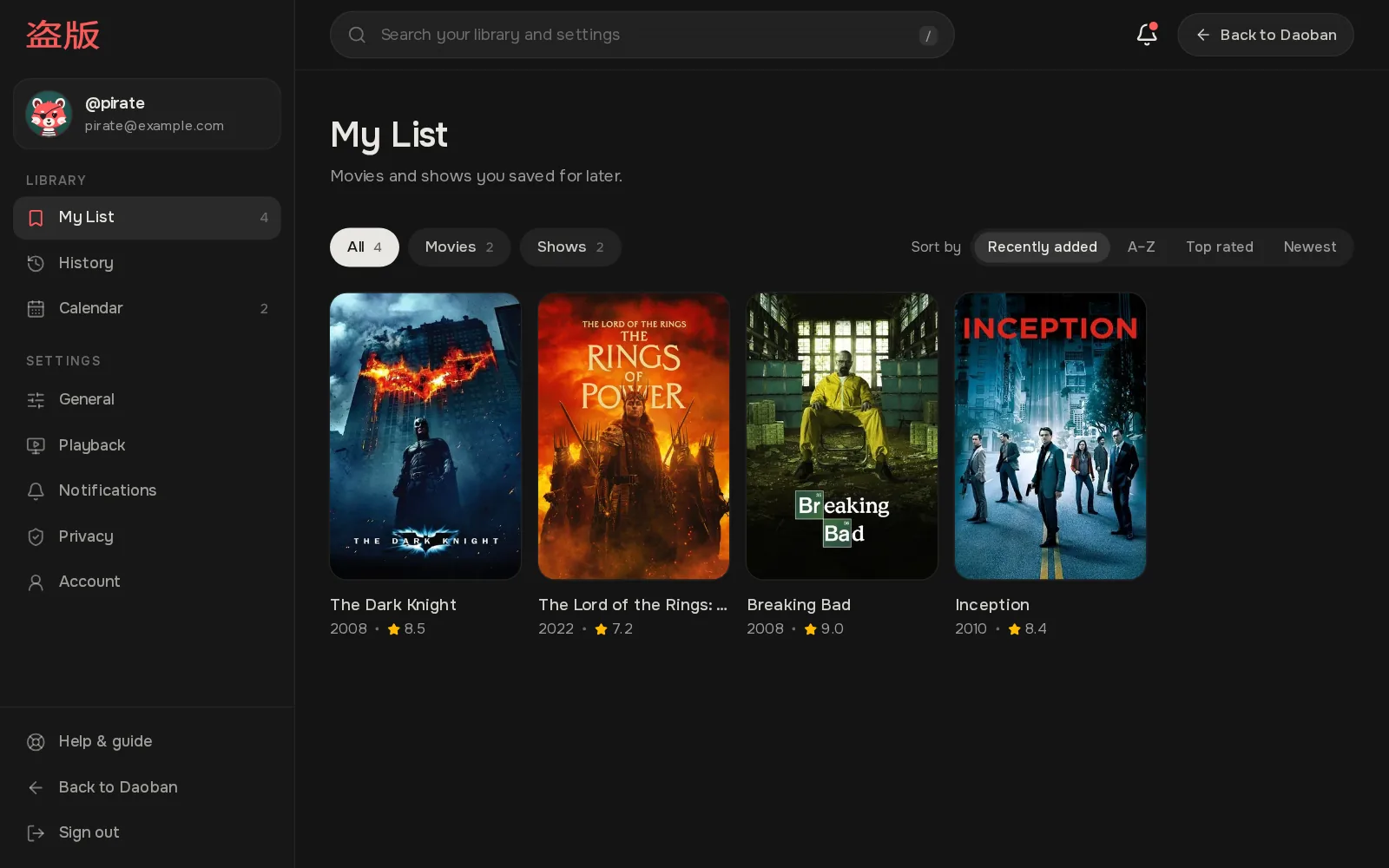
Your profile in the top bar (Guest or your avatar) opens your account. It's a full-screen dashboard with a sidebar on the left. On phones, the menu button at the top left opens it.
Library
- My List: everything you've saved, with filters for movies and shows and four ways to sort. Removing a title can be undone right away.
- History: Continue watching plus everything you've watched, grouped by day. Remove a single entry or clear it all.
- Calendar: new and upcoming episodes of the shows you follow. See New episodes and your calendar.
Search your account
The search box at the top (/ or Ctrl K) looks through your own things: titles in My List, your history and the shows you follow, plus every setting. Pick a setting and it opens the right page and highlights it. The last option searches all of Daoban instead.

Settings
Settings are saved on the device you're using, so each device can be set up its own way.
| Page | What you can change |
|---|---|
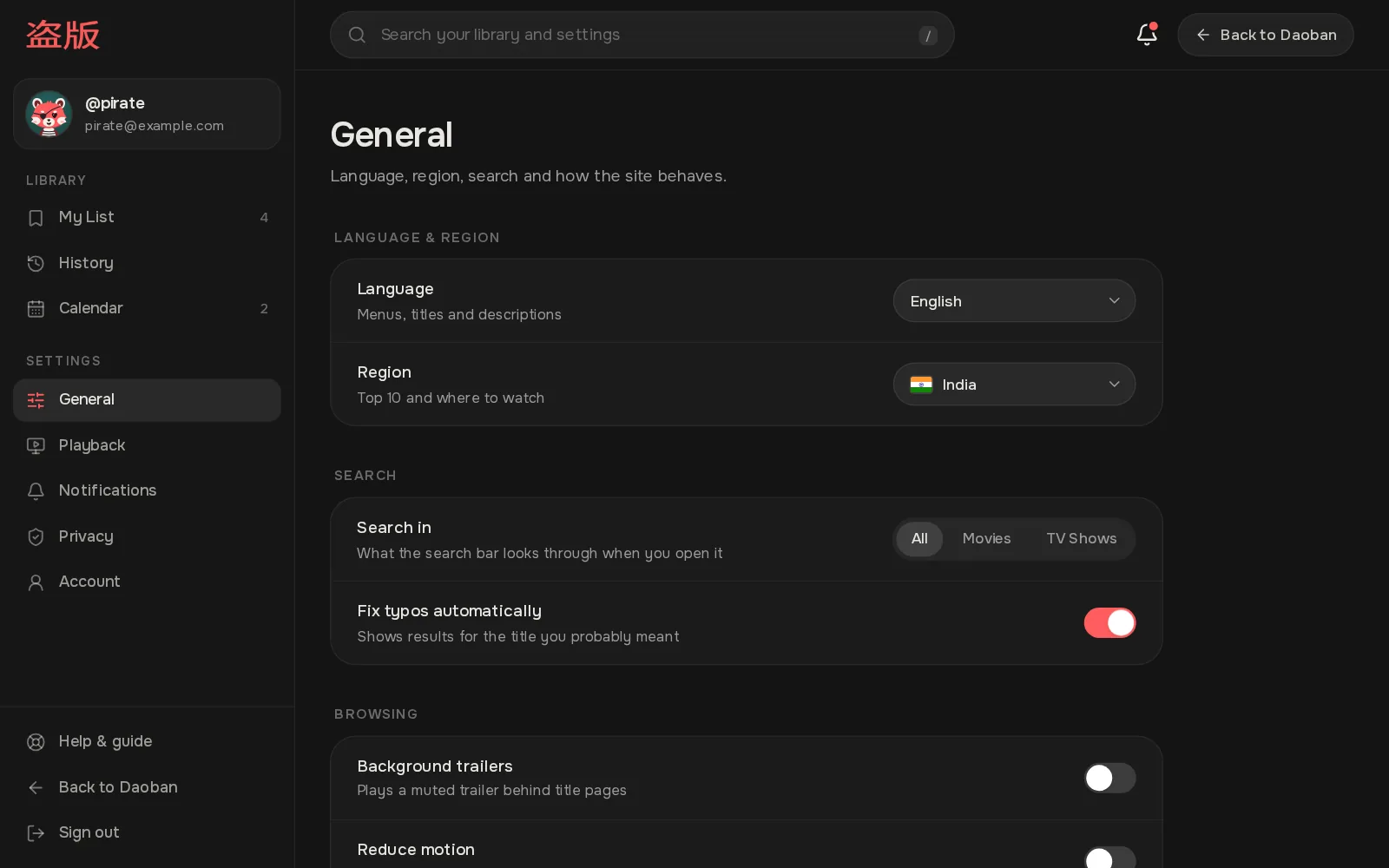
| General | Language and region; whether search starts on All, Movies or TV Shows; fixing typos in search; background trailers; reduce motion (turns off animations and trailers); the Continue watching and Because you watched rows on your home page |
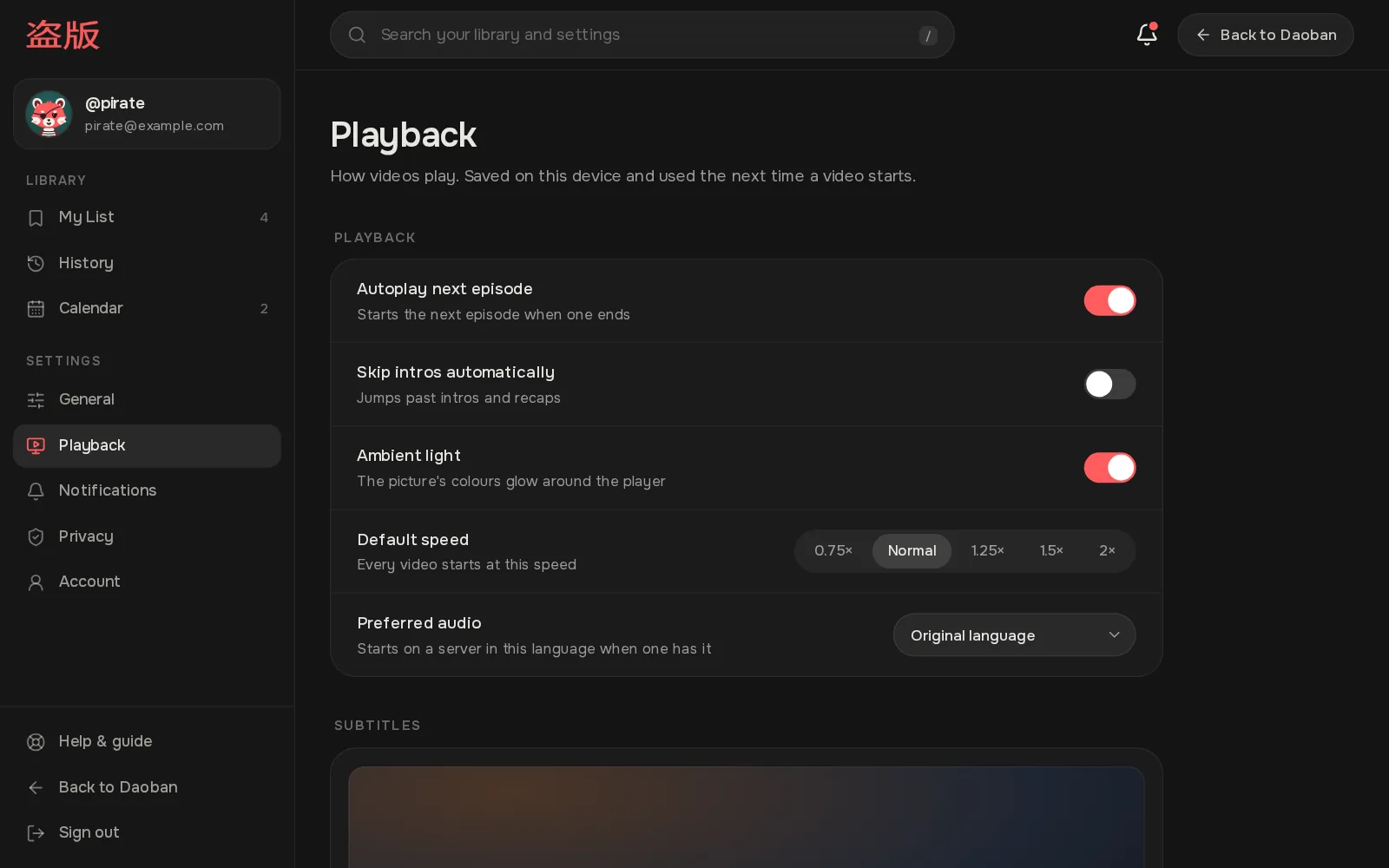
| Playback | Autoplay next episode; skip intros automatically; ambient light; default speed; preferred audio language; subtitle language, size, colour, background, font and bold, with a live preview |
| Notifications | New episode alerts; news and tips (like the Discord invite); a shortcut to the shows you follow |
| Privacy | Pause or clear your watch history; remember or clear recent searches; whether Dai can use your watch history |
| Account | Your email and member-since date; Connections for Google and Discord; your beta tester application; Sign out; and Delete account |
Connections
Under Account → Connections you can link Google or Discord to your account, even if you signed up with an email code. After that you can sign in with any of them. The Google or Discord email doesn't have to match your Daoban email. Disconnect removes one again, and signing in with an email code always keeps working.
Deleting your account needs a 6-digit code sent to your email, so nobody can do it by accident. It removes your account, list, history and followed shows for good.
Back to Daoban, at the top right and at the bottom of the sidebar, takes you back to the rest of the site.
19Region and language
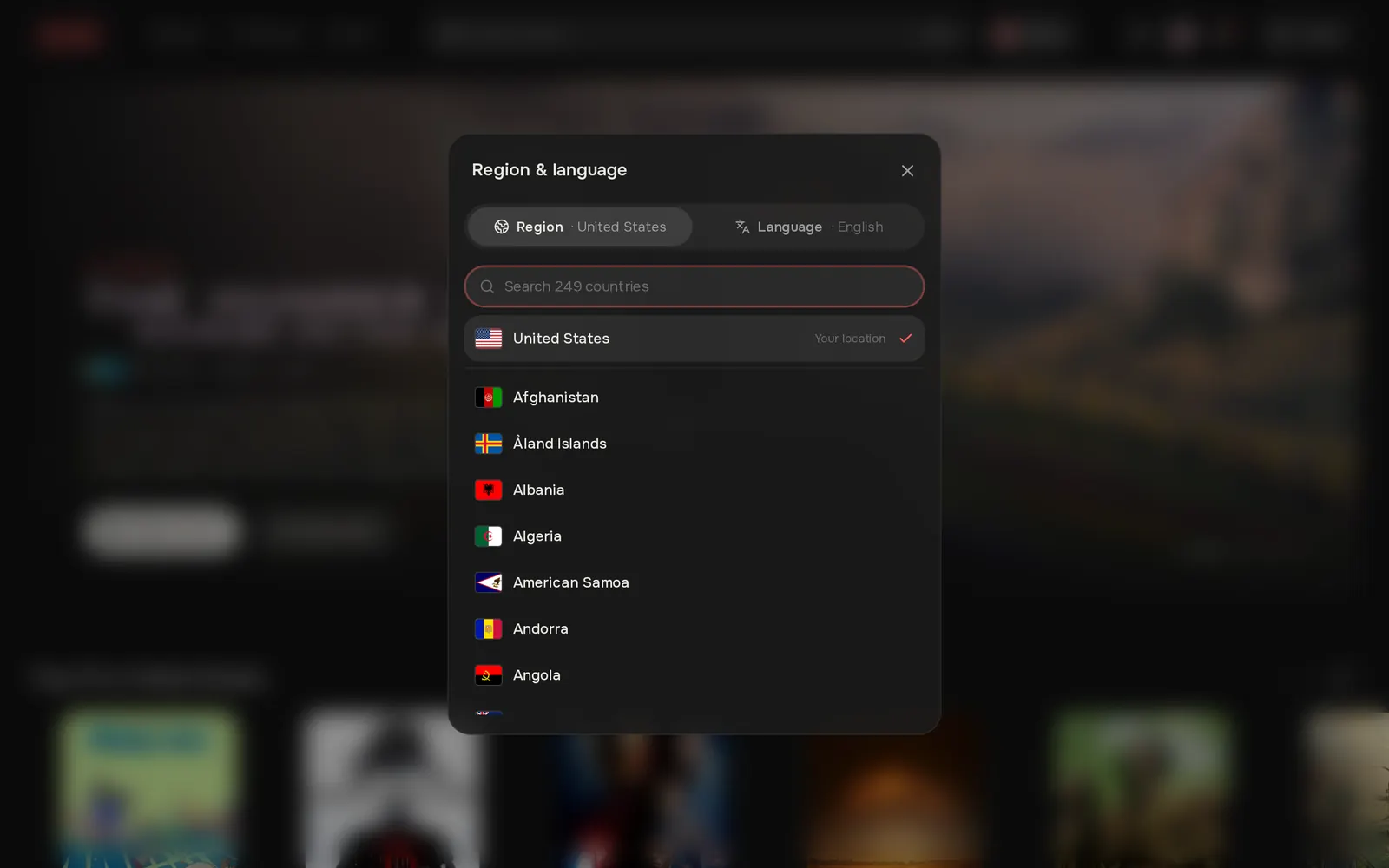
The flag in the top bar opens Region & language.
- Region is detected for you, and you can change it to any country. It decides:
- which streaming services you see;
- the Top 10 and "Trending in…" lists;
- the local rows, like "New from India" or "In Hindi";
- release dates and age ratings.
- Language changes the whole interface and the titles and descriptions. Daoban is available in 14 languages.
You can change both in Account → General too.
20Notifications
The bell shows a coral dot when you have something unread. You'll find:
- New episodes of shows you follow, with a Watch now button. See New episodes and your calendar.
- A reminder to sign up, while you're a guest, so your list and history are kept safe.
- An invite to our Discord.
- Click a notification to open it.
- Mark all as read removes the dot.
- Clear all removes them from the list.
- Your calendar, at the bottom, opens the calendar when you follow at least one show.
Choose what shows up in Account → Notifications: turn off new episode alerts, or news and tips.
21Daoban Wrapped
Wrapped is your year on Daoban as a short story you tap through: how many minutes you watched, your top 5 titles, your favourite genres, your biggest binge day, your busiest month and the time you usually press play, your longest streak, the languages you watched in and your watcher type, like The Night Owl or The Binger.
- It comes out every year on 1 December (we'll say on Discord if the date changes) and stays open until the end of January. Open it from Your Wrapped in your account, or from the bell once it's out.
- Tap the right side to go forward and the left to go back, or use the arrow keys. Hold anywhere to pause.
- The last card can be saved as an image or shared straight to Instagram, WhatsApp and other apps. The image is made on your device.
- It's built from your watch history for the year, so it needs about an hour of watching to appear. Guests get one too, for what they watched in that browser. If you paused Save watch history, that time isn't counted.
- "More than X% of Daoban viewers" compares your total with everyone else's. Nobody else sees your Wrapped unless you share it.
22Your data
Daoban keeps very little.
- Settings like your region, language, search and player choices, and your recent searches, stay in your own browser.
- As a guest, your list, history and followed shows are kept in a guest profile tied to this browser. Guest profiles that haven't been used for two months are deleted.
- With an account, they're saved to your account so they follow you between devices.
- Chats with Dai aren't saved by Daoban; they stay in your browser tab until you close it. To write a reply, your messages and, if you allow it, the titles you've watched, saved and follow are sent to the AI services that run Dai.
- Beta applications: your answers and public Discord profile are only seen by the Daoban team, and they're deleted with your account.
In Account → Privacy you can pause your watch history (nothing new is saved while it's off), clear it everywhere, stop remembering recent searches, clear them, or stop Dai from using your watch history.
The full details are in the Privacy Policy and Terms.
23Tips and troubleshooting
- A video won't start or keeps buffering: open the Servers menu (the cloud) and pick another server. Your place is kept.
- "No server has this title right now": press Try again. The first look for a rare title can be slow, and a second try often works because the servers have had time to answer.
- Wrong audio language, or you want a dub: open Audio & subtitles → Audio language and pick the one you want.
- "… stopped working, so we switched to …": that server failed and the player moved to another one by itself. Nothing to do unless you'd rather pick a different server.
- The wrong episode plays: some servers mix up their episodes. The player checks each video's length and skips ones that don't match, but if the right length is close it can still slip through. Pick another server from the cloud menu.
- Subtitles are out of sync, or your language isn't there: try another server, since each one has its own subtitles, or use Timing in the subtitles menu.
- Casting to your TV fails: make sure the TV and your phone or computer are on the same Wi-Fi. If the TV can't play a server, stop casting, switch servers and cast again. No Cast or AirPlay button? Use Chrome or Edge, or Safari on Apple devices. See Watching on your TV.
- Wrong country or services: set your region with the flag in the top bar.
- Your progress isn't on another device: sign in on both. As a guest, progress stays in the browser you watched in.
- Your progress isn't saved at all: check that Save watch history is on in Account → Privacy.
- No alert for a new episode: make sure the bell on the show's page is red and New episodes is on in Account → Notifications. If the calendar says Aired · not streaming yet, our servers don't have it yet; the alert appears once they do.
- Search keeps changing what you typed: use search instead for on the results page, or turn off Fix typos automatically in Account → General.
- Too much movement on screen: turn on Reduce motion in Account → General. It also stops background trailers.
- "Too many new accounts were made on your network today": only a few accounts can be created from one internet connection each day. Log in to an existing account, or try again later.
- Dai says it's busy or has reached its limit: lots of people are asking at once, or today's free AI allowance is used up. Try again in a minute, or tomorrow for the daily limit.
- Something's missing or broken: tell us on Discord. Title requests are welcome too.
24Beta testing
Beta testers try new features and our app before everyone else and tell us what breaks. Anyone with a free account can apply at daoban.lol/applications/beta-tester:
- Join our Discord. Beta builds, feedback and bug reports all happen there.
- Connect your Discord account, so we know who you are on the server. We only see your public profile: name, username and avatar.
- Answer a few questions: the devices you'd test on, how often you use Daoban, what you watch, the languages you speak, whether you've tested apps before and why you want to join. Then promise to keep beta builds and unreleased features to yourself.
You can edit your answers until we've reviewed them. We email you as soon as there's a decision, and your status also shows on the application page and under Account → Beta program. Accepted testers get early access to new features and the Android app, a Beta tester role and a private channel on our Discord. If it's a no this time, you can apply again later.
25Community and help
Join the crew on Discord to request titles, report broken streams and chat with other viewers. You can also follow @daobanlol on X for updates. Ask Dai for either one and it gives you the buttons.